
How to Use AtlasVoice Pro with Polylang and Polylang Pro
AtlasVoice Pro can read each post in its own language on a site translated with Polylang. You choose one language and voice for each Polylang language, and the player then uses the right one for every post.
Before you start
- AtlasVoice Pro and the free Text To Speech TTS Accessibility plugin are active and up to date.
- Your languages are added in Polylang, and your posts have a language.
- Your voice service is connected in AtlasVoice > Integrations if you use Google Cloud, ChatGPT or ElevenLabs.
Set a voice for each language
- Go to AtlasVoice > Customization, choose your player under Select Player, and click Save.
- Go to AtlasVoice > Listening and scroll down to Polylang Plugin Language Mapping. There is one row for each Polylang language.
- In each row, choose the language and the voice for that language.
- Click Save.
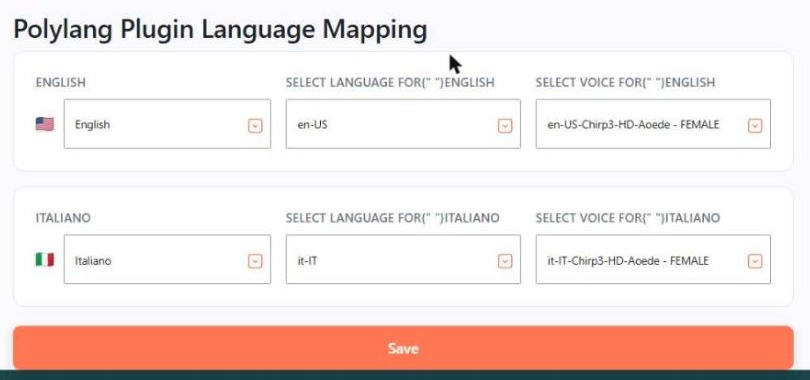
Choose a voice that matches the language. With Google Cloud, the voice list shows the voices of every language, so make sure the voice name starts with the same code as the language. For Italian (it-IT), choose a voice such as it-IT-Chirp3-HD-Aoede.
Check that it works
- Open a post in one of your languages and press play. An MP3 player makes the audio the first time, using the voice you set for that language.
- Repeat with a post in another language.
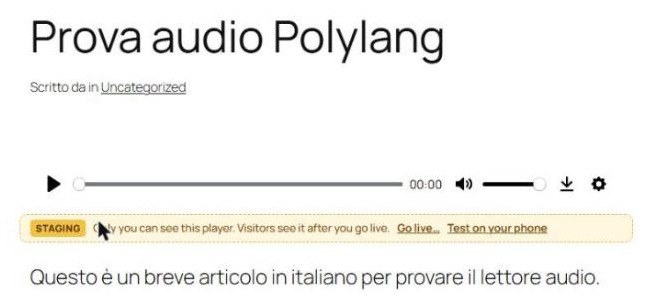
Posts that already have an MP3 keep it. To make it again with the new voice, edit the post, open the AtlasVoice box below the editor, delete the MP3 and open the post again.
While AtlasVoice is in Staging, only logged-in admins see the player. Click Go live when you are ready to show it to visitors.
Using Polylang Pro?
If you use Polylang Pro and the Polylang Plugin Language Mapping section does not appear in Listening, add the snippet below. Without it, posts in every language use the main language and voice from Listening. You do not need this with the free Polylang plugin.
Add it with the free Code Snippets plugin (set it to run everywhere), or in your child theme’s functions.php file:
add_filter( 'tts_compatible_plugins_data', function ( $data ) {
	if ( isset( $data['polylang/polylang.php'] ) || ! function_exists( 'pll_languages_list' ) ) {
		return $data;
	}

	$languages = array();
	foreach ( (array) pll_languages_list( array( 'fields' => '' ) ) as $language ) {
		$languages[ $language->slug ] = array(
			'english_name' => $language->name,
			'locale'       => $language->locale,
		);
	}

	$data['polylang/polylang.php'] = array(
		'type'             => 'class',
		'data'             => array(),
		'plugin'           => 'polylang',
		'active_languages' => $languages,
	);

	return $data;
} );
Then reload AtlasVoice > Listening. The section appears, and you can follow the steps above.
Need help?
If the player still uses the wrong language or voice, contact our support team and tell us your AtlasVoice, Polylang and WordPress versions.