How to Configure GTranslate Plugin with AltasVoice Pro Version?
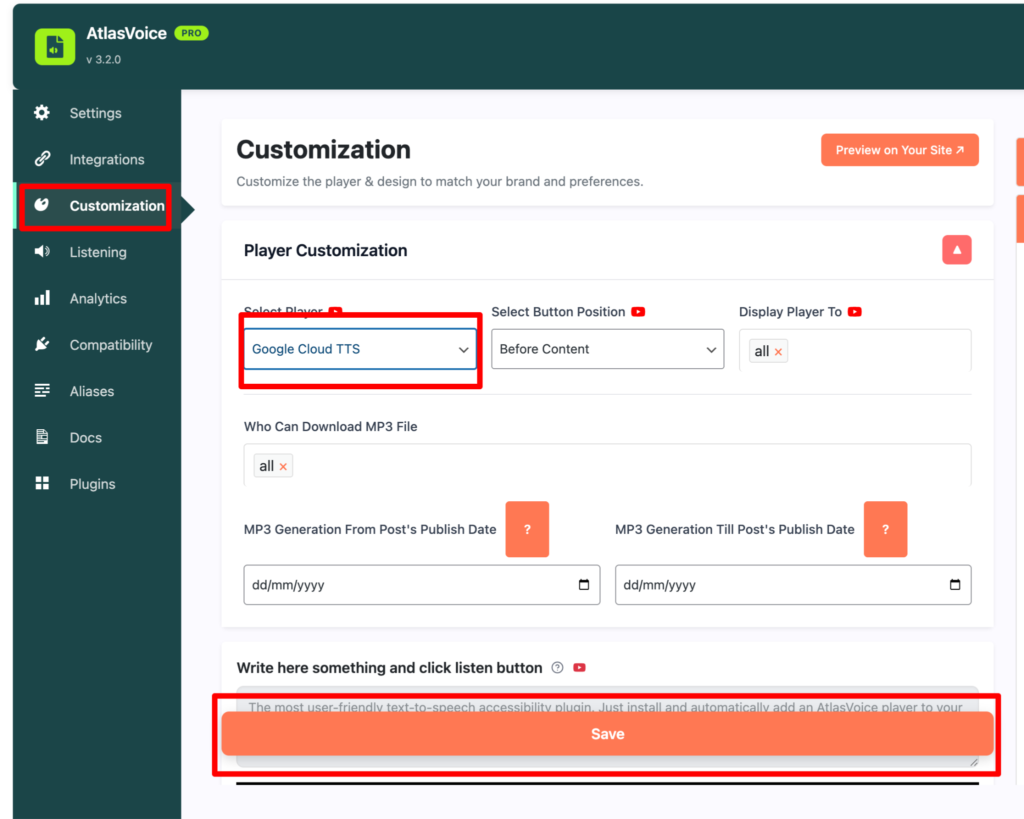
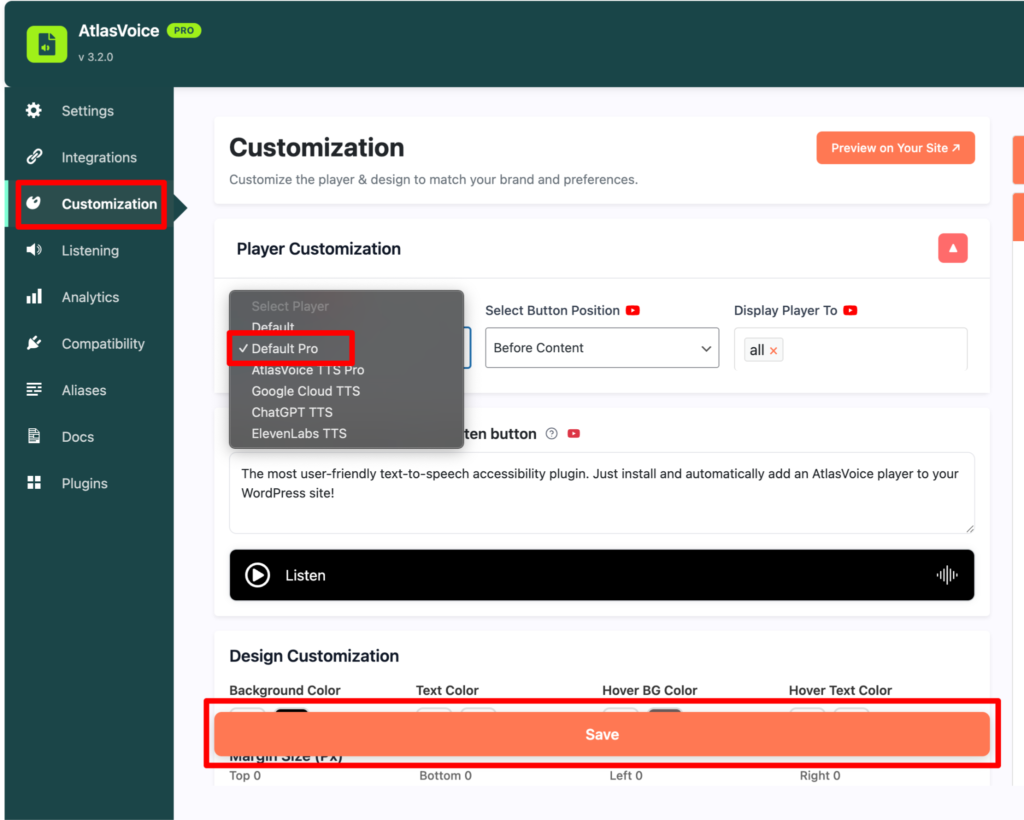
First come to the customization tab from the admin dashboard, select the player to “Default Pro”. Please make sure you upgraded to the pro version because the Gtranslate plugin won’t work on the free version. So the “Default” player will not work.
Press the save button after selecting “Default Pro”.
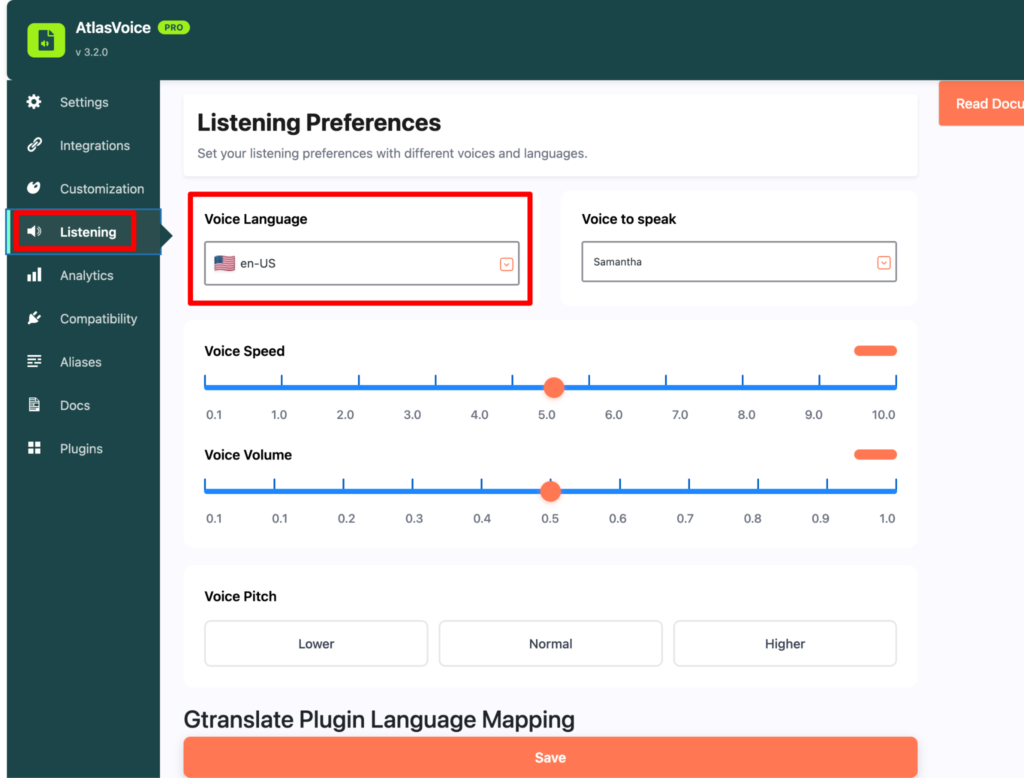
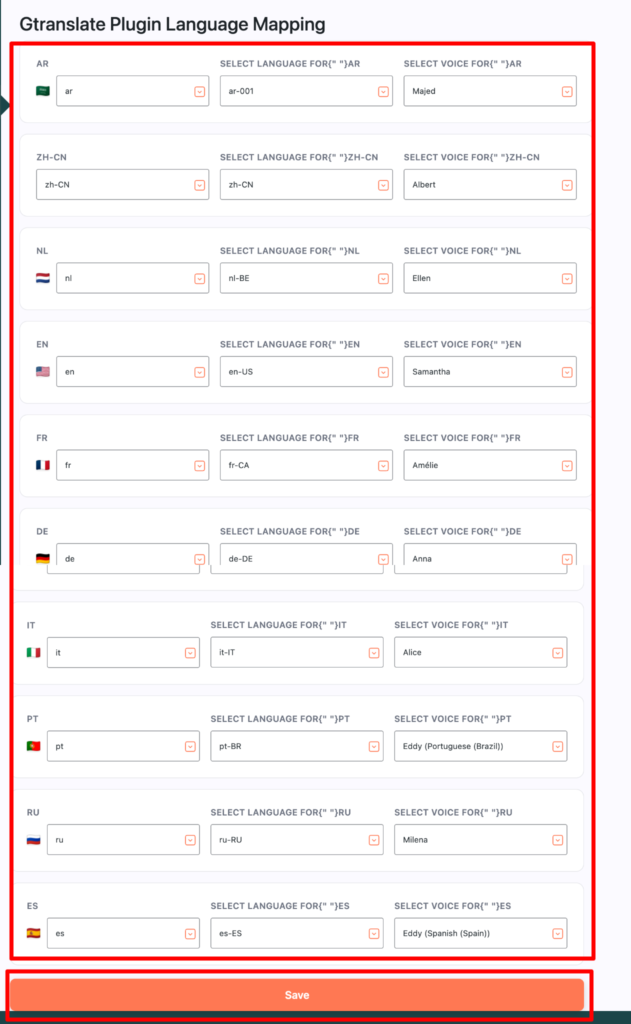
Come to the listening tab and here you will see the default voice language to English. You can keep it as it is or can change if you want.
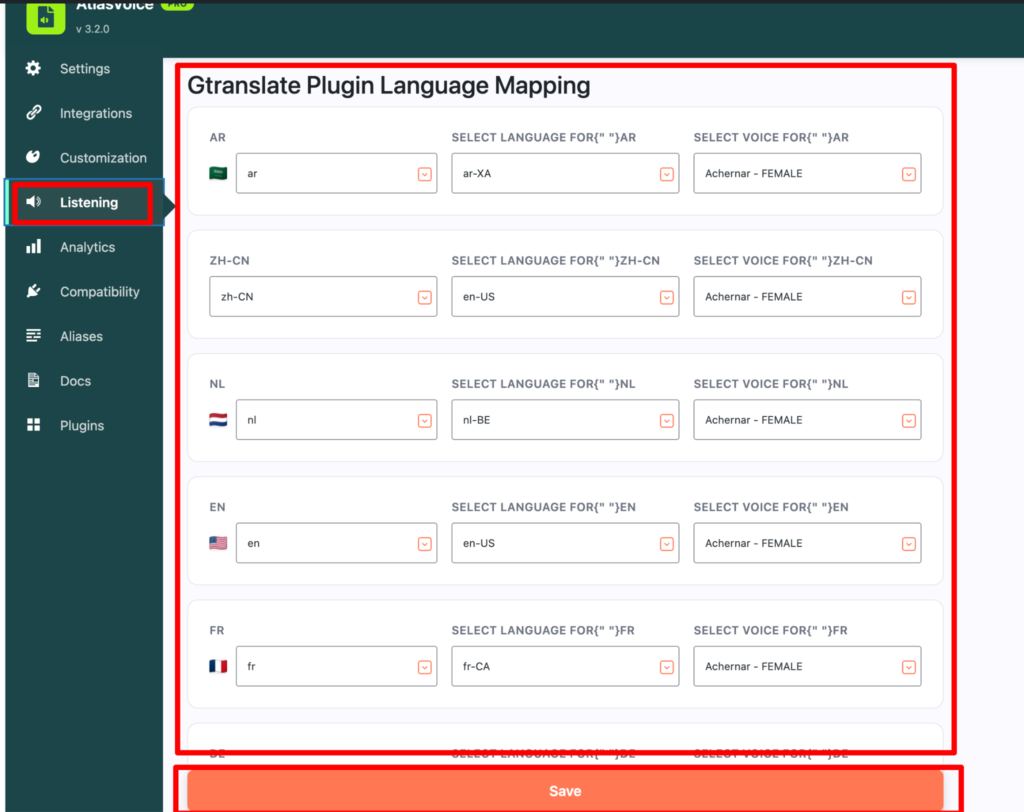
Please make sure you install the Gtranslate plugin, otherwise this UI wont show to the listening tab. Here you can see so many voice languages and voices to speak options. You can also change them according to your preferences. Suppose you want to change the voice of any language you can do that too and can also change the languages with different accents. Lastly press the save button.
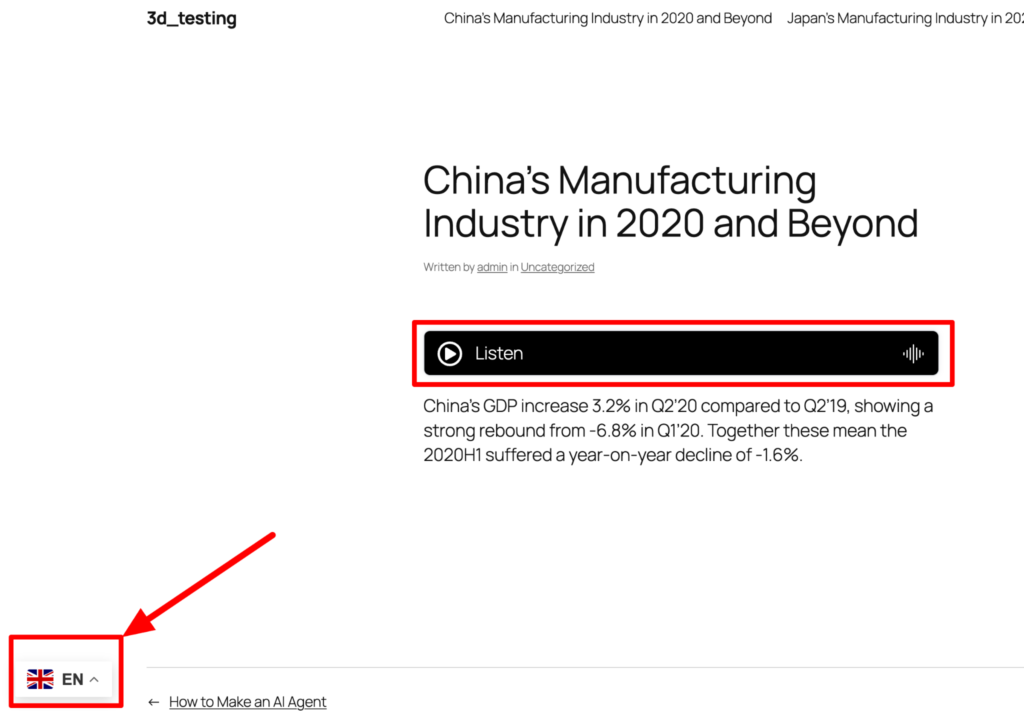
Now on the front end you can see there is an option below for the Gtranslate plugin. Initially it will be English. So click it to change the language.
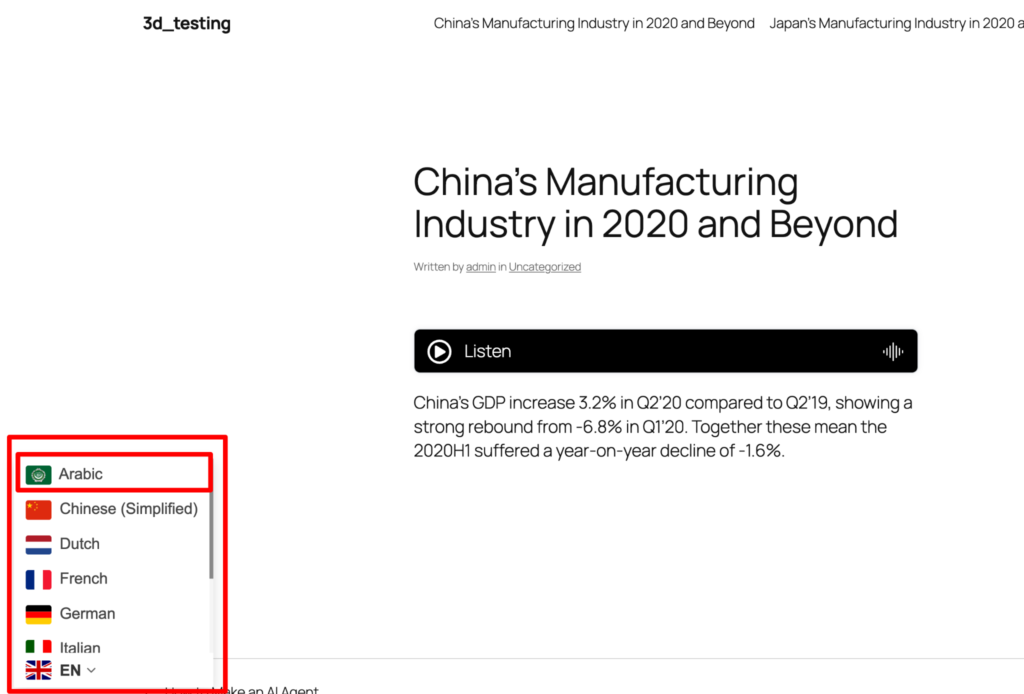
So here are all the Gtranslate plugin languages, Choose according to your preferences. Lets choose Arabic for an example.
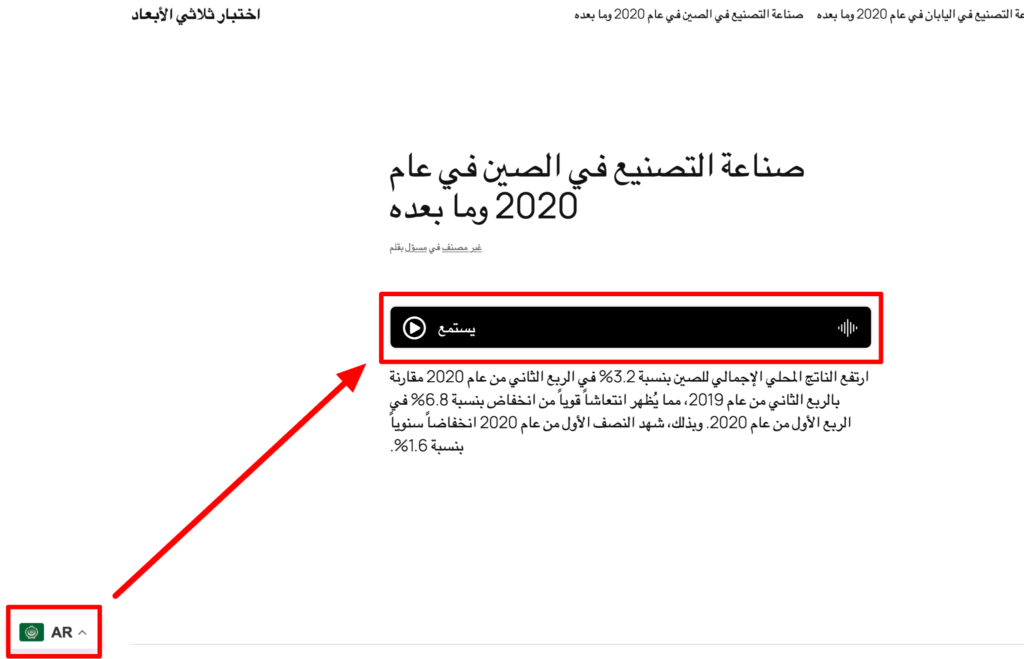
Now as you can see the player and language changed to Arabic and its reading arabic. So it’s working perfectly.
So for other players like Google Cloud TTS, ChatGPT TTS, ElevenLabs TTS it will work the same but you will have more options for voices to speak and more language genres to choose according to your preferences.