
Fixing CORS errors when using a CDN (WP Rocket / RocketCDN / Cloudflare / BunnyCDN / StackPath)
The symptom
Your browser console shows something like:
Access to script
https://cdn.example.com/.../plugins/text-to-audio/.../*.jshas been blocked by CORS policy: No ‘Access-Control-Allow-Origin’ header is present on the requested resource.
AtlasVoice’s audio player fails to appear or crashes, and the dashboard shows the warning “AtlasVoice: CDN / CORS issue detected.”
Why this happens
Your CDN (WP Rocket CDN, BunnyCDN, StackPath, Cloudflare, etc.) pulls our plugin’s JavaScript from your origin server and re-serves it from a different hostname (for example rocketcdn.me). When your optimizer rewrites our <script> tags, the browser enforces CORS on the cross-origin request. If the CDN response doesn’t include an Access-Control-Allow-Origin header, the script is blocked.
This is a server / CDN configuration issue on your site, not a plugin bug. You have two ways to fix it:
- Quickest fix: tell the CDN not to serve our plugin files. Your site keeps using the CDN for everything else.
- Proper fix: send CORS headers from your origin so the CDN copies them to visitors.
Fix 1 (recommended, fastest): Exclude AtlasVoice from your CDN
WP Rocket — CDN tab
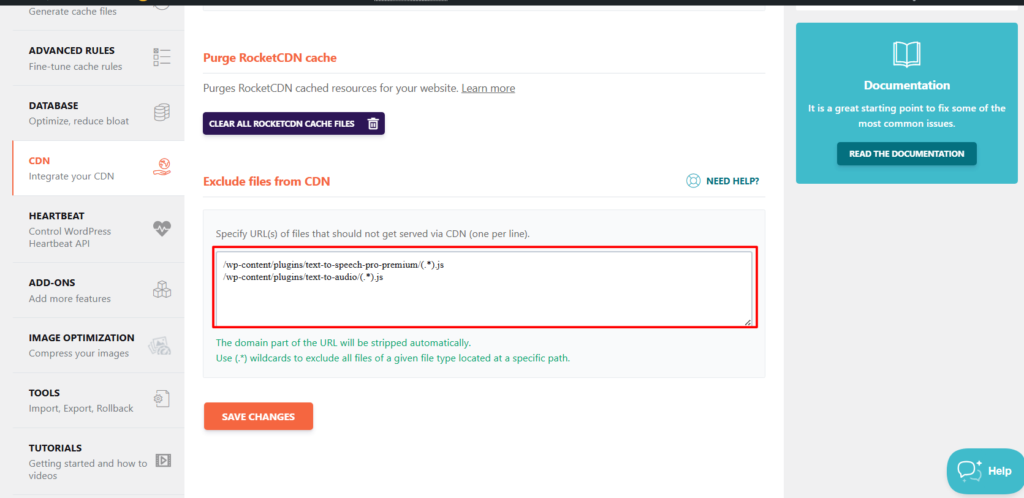
Go to Settings → WP Rocket → CDN and scroll to “Exclude files from CDN”. Add the following patterns, one per line:
/wp-content/plugins/text-to-speech-pro-premium/(.*).js
/wp-content/plugins/text-to-audio/(.*).js
/wp-content/plugins/text-to-audio/(.*)
/wp-content/plugins/text-to-speech-pro-premium/(.*)
/wp-content/plugins/text-to-audio-pro/(.*)
/wp-content/plugins/text-to-speech-pro/(.*)
Include only the Pro slug you actually have installed —
text-to-speech-pro-premiumis the Freemius-licensed build, the other two are the non-Freemius variants. Adding all four is harmless.
Click Save Changes, then Clear and preload cache from the WP Rocket admin bar menu.
BunnyCDN / StackPath / generic pull zone
In the pull-zone settings, add a URL filter or bypass rule for:
/wp-content/plugins/text-to-audio/*
/wp-content/plugins/text-to-speech-pro-premium/*
/wp-content/plugins/text-to-audio-pro/*
Purge the zone afterward.
Cloudflare
Create a Cache Rule (Rules → Overview → Cache Rules) with:
- When incoming requests match: URI Path contains
/wp-content/plugins/text-to-audioOR contains/wp-content/plugins/text-to-speech-proOR contains/wp-content/plugins/text-to-audio-pro - Then: Cache eligibility → Bypass cache
Then Caching → Configuration → Purge Everything.
Fix 2: Exclude from “Delay JavaScript execution”
If you’ve enabled WP Rocket → File Optimization → Delay JavaScript execution, the plugin can still break because our scripts need to initialise before interaction.
Open Settings → WP Rocket → File Optimization → Delay JavaScript execution → Excluded JavaScript files and add the following, one filename per line (this field matches substrings against the script URL — it does not accept regex or wildcards):
text-to-audio
text-to-speech-pro
TextToSpeech.min.js
TextToSpeechPro.min.js
plyr.min.js
bulk-mp3-file.min.js
AtlasVoiceAnalytics.min.js
AtlasVoiceAnalyticsPro.min.js
pro-wizard.min.js
Save, then Clear cache.
The first two lines (
text-to-audioandtext-to-speech-pro) match every script path under our plugin folders, so the explicit filenames below are belt-and-braces for edge cases.
The same approach works for LiteSpeed Cache → Page Optimization → Tuning → JS Delayed Includes, Perfmatters → Assets → Delay JavaScript Exclusions, and WP Meteor.
Fix 3 (proper fix): Send CORS headers from the origin
If you’d rather keep serving our plugin files through the CDN, have your origin server return the Access-Control-Allow-Origin header. The CDN will cache and forward it.
Apache — .htaccess
Add this block above the # BEGIN WordPress line in the site root .htaccess:
<IfModule mod_headers.c>
  <FilesMatch "\.(js|css|woff2?|ttf|eot|svg|otf)$">
    Header set Access-Control-Allow-Origin "*"
    Header set Access-Control-Allow-Methods "GET, OPTIONS"
  </FilesMatch>
</IfModule>
nginx
Inside the relevant server { } block:
location ~* \.(js|css|woff2?|ttf|eot|svg|otf)$ {
  add_header Access-Control-Allow-Origin "*" always;
  add_header Access-Control-Allow-Methods "GET, OPTIONS" always;
  try_files $uri =404;
}
Reload nginx (sudo nginx -s reload) or restart Apache after saving.
LiteSpeed — .htaccess (same as Apache) or the Web Admin httpd_config.conf
LiteSpeed honours the Apache block above. If you manage headers through the LiteSpeed admin panel, add a Context → Extra Header rule for the same file extensions.
Verifying the fix
After clearing your CDN and browser caches, load any front-end page that has the audio player. Check the network response for one of our scripts:
curl -I https://your-site.com/wp-content/plugins/text-to-audio/admin/js/build/TextToSpeech.min.js
You should see either:
HTTP/2 200served from your origin (exclusion worked — the CDN is not rewriting this file), orHTTP/2 200with anaccess-control-allow-origin: *header in the response (origin header fix worked — the CDN has cached the new header).
Reload the front-end page; the console should no longer show the CORS error, and the AtlasVoice: CDN / CORS issue detected dashboard notice will disappear on the next successful page load.
Still stuck?
- Purge both the CDN cache and WP Rocket’s internal cache.
- Hard-refresh the browser with Ctrl/Cmd + Shift + R to bypass the local browser cache.
- Check your hosting panel — some managed hosts (Kinsta, WP Engine, SiteGround) run a second CDN layer that must be purged separately.
- If you use Cloudflare in front of another CDN, purge Cloudflare last.
If the notice still appears after all of the above, open a support ticket from AtlasVoice → Support and include a screenshot of the browser console error plus the output of the curl -I command above.