
How to Monitor and Fix WordPress PHP Errors with AI (Error Debugger)
PHP errors break pages quietly, and you often learn about them from a visitor. The Error debugger tracks errors as they happen, emails you, and gives you a prompt that an AI assistant can use to fix them.
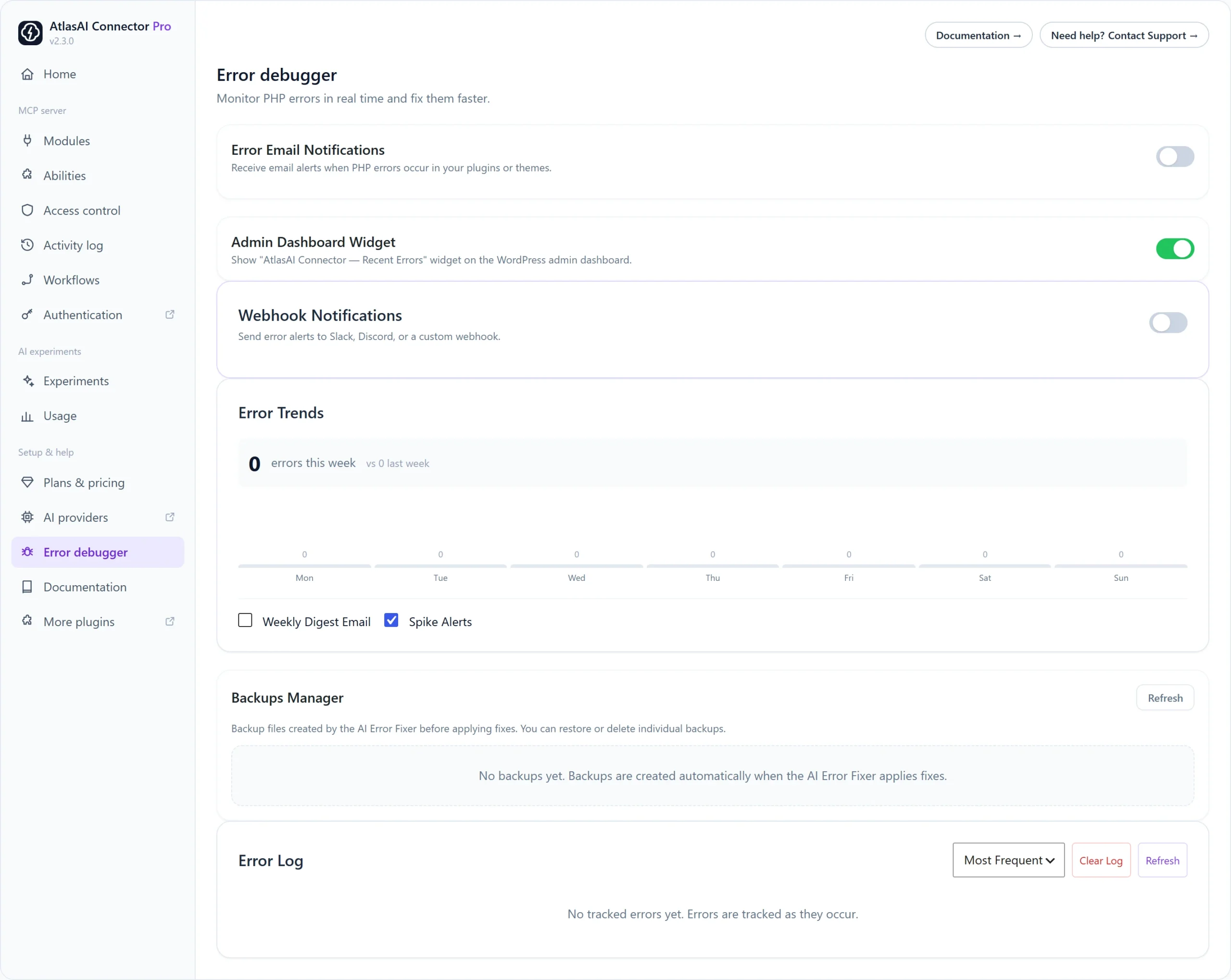
Step 1: Turn it on
- Go to AtlasAI Connector → Modules and switch on Error Debugger.
- Open Error debugger in the left rail.
- To also catch errors written to
wp-content/debug.log, add these lines towp-config.php:
define( 'WP_DEBUG', true );
define( 'WP_DEBUG_LOG', true );
Step 2: Get alerts
- Error Email Notifications: switch on to get an email when a PHP error occurs in a plugin or theme. Choose the recipient, severities and a rate limit.
- Admin Dashboard Widget: shows recent errors on the WordPress dashboard.
Step 3: Fix an error with AI
- Open the error email or the Error Log, sorted by Most Frequent or Most Recent.
- Copy the How to Fix text from the email.
- Paste it into Claude, ChatGPT or Gemini for step-by-step fix instructions.
Pro features
Pro: Webhook alerts to Slack, Discord or any URL, a weekly digest email and spike alerts.
Pro: The AI Error Fixer: paste the MCP fix command into a connected client such as Claude or Cursor. It reads the file, suggests a fix, backs up the file and applies the change. Restore any backup from the Backups Manager.
Pro: Watch errors from WordPress core, must-use plugins and drop-ins as well.