
How to Set Up AtlasAI Connector: Turn WordPress into an MCP Server for Claude and ChatGPT
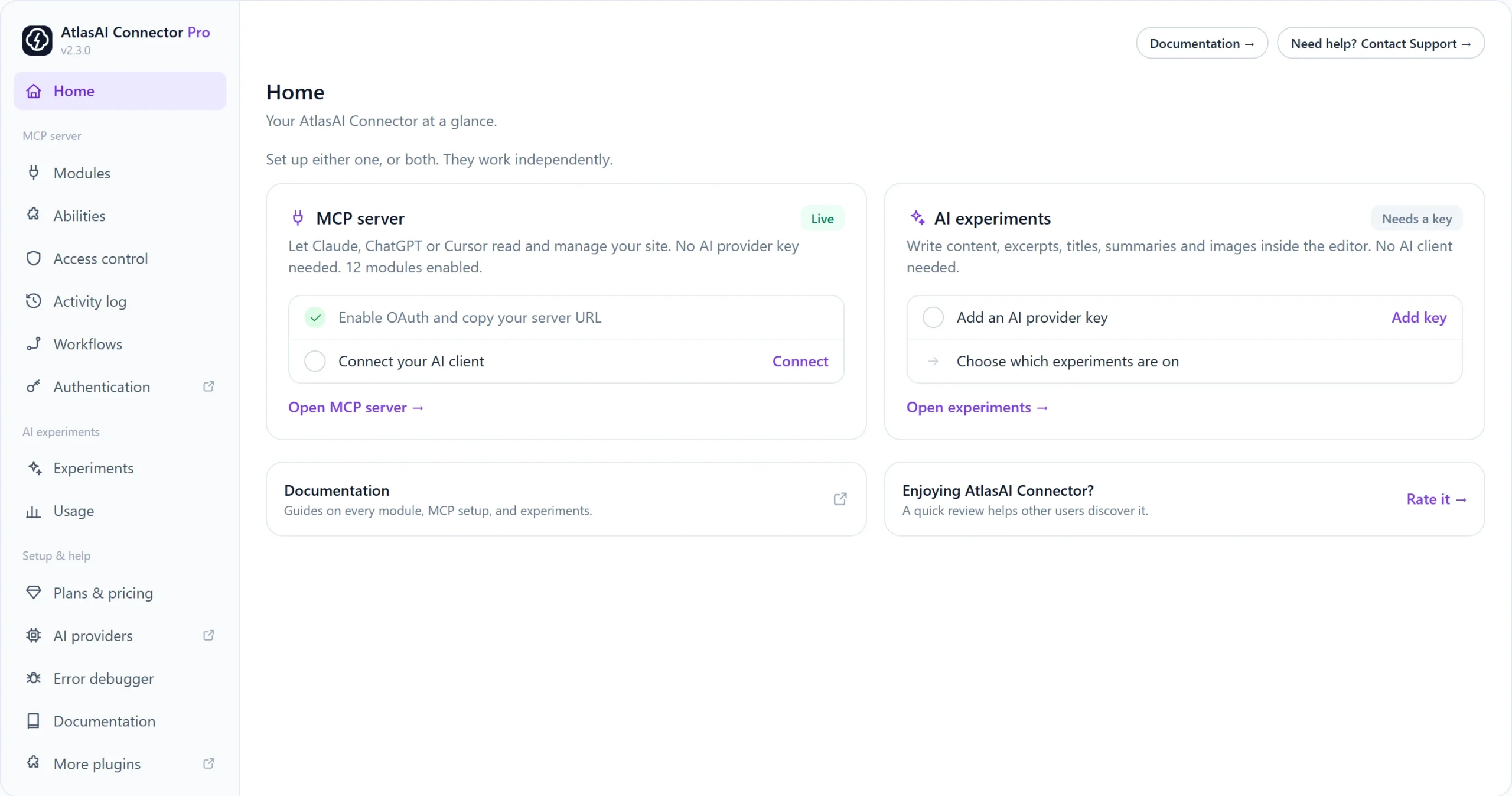
You want Claude, ChatGPT or Cursor to read and manage your WordPress site, or you want AI writing tools inside the editor. AtlasAI Connector does both, and the two parts work independently: the MCP server needs no AI provider key, and the AI experiments need no AI client.
What you need
- WordPress 6.8 or later and PHP 7.4 or later.
- HTTPS on your site if you connect a remote client such as Claude.ai or ChatGPT.
- An AI provider key (OpenAI, Google or Anthropic) only if you want the editor AI tools.
Step 1: Install and activate the plugin
- In WordPress, go to Plugins → Add New and search for AtlasAI Connector.
- Click Install Now, then Activate.
- Open AtlasAI Connector in the admin menu. The Home screen shows two cards: MCP server and AI experiments.
Step 2: Set up the MCP server (connect an AI client)
- Click Authentication in the left rail (the MCP Auth page).
- Tick Enable OAuth 2.1 connect for the MCP server and click Save.
- Copy your server URL. It looks like
https://your-site.com/wp-json/awfah_mcp/mcp. - Paste it into your AI client as a custom connector and approve the consent screen. Full steps for each client are in Connect Claude, ChatGPT and Cursor to WordPress with OAuth.
Your site now works as an MCP server. The AI client can use every tool that your WordPress role allows.
Step 3: Set up the AI experiments (optional)
- Click AI providers in the left rail and add a key for OpenAI, Google or Anthropic.
- Click Experiments and choose which editor tools are on.
- Open any post. The AI panels appear in the block editor and the Classic Editor.
Step 4: Keep the AI focused
Most AI clients start picking the wrong tool once they see more than about 100. Turn off modules you do not need on the Modules screen, and limit each role on the Access control screen.