
How to Choose Which WordPress Tools Your AI Client Can Use (MCP Modules)
Your AI client sees every tool your site offers. Too many tools make it slower and more likely to pick the wrong one. The Modules screen lets you switch whole groups of tools on or off in one click.
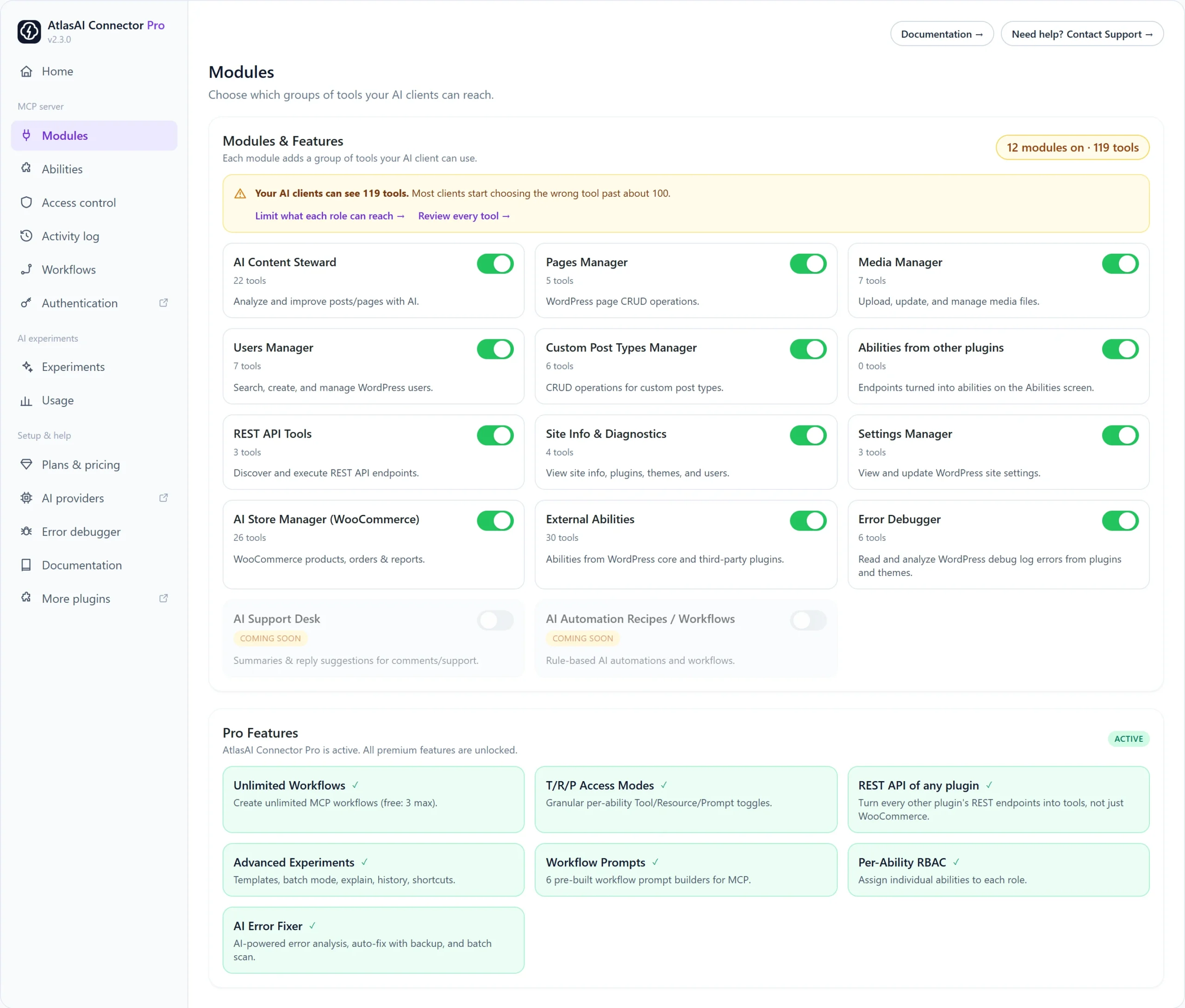
How to turn a module on or off
- Go to AtlasAI Connector → Modules.
- Use the switch on a module card. The change is saved straight away.
- Check the badge at the top, for example 12 modules on · 119 tools.
What each module does
| Module | Tools | What your AI client can do |
|---|---|---|
| AI Content Steward | 22 | Analyze and write posts with AI, plus create, edit and delete posts, categories and tags |
| Pages Manager | 5 | Create, edit and delete pages |
| Media Manager | 7 | Upload, update and manage media files |
| Users Manager | 7 | Search, create and manage users |
| Custom Post Types Manager | 6 | Create and edit any custom post type |
| Abilities from other plugins | Varies | Use REST endpoints from other plugins that you added on the Abilities screen |
| REST API Tools | 3 | Discover and run any WordPress REST endpoint |
| Site Info and Diagnostics | 4 | Read site, plugin, theme and user information |
| Settings Manager | 3 | Read and update WordPress settings |
| AI Store Manager (WooCommerce) | 24 (26 with Pro) | Products, categories, tags, brands, orders and reports. Needs WooCommerce. |
| External Abilities | Varies | Abilities that WordPress core and other plugins register |
| Error Debugger | 4 (6 with Pro) | Read and analyze PHP errors; Pro can apply fixes |
Fix the “Your AI clients can see too many tools” warning
When your site offers more than about 100 tools, a yellow warning appears. To fix it:
- Turn off modules you never use, for example Users Manager or Settings Manager.
- Click Limit what each role can reach to give each role only the tools it needs.
- Click Review every tool to see which plugins add the most.
Turning a module off hides its tools from every AI client. It does not delete anything on your site.