
How to See Every Tool an AI Client Ran on Your WordPress Site (Activity Log)
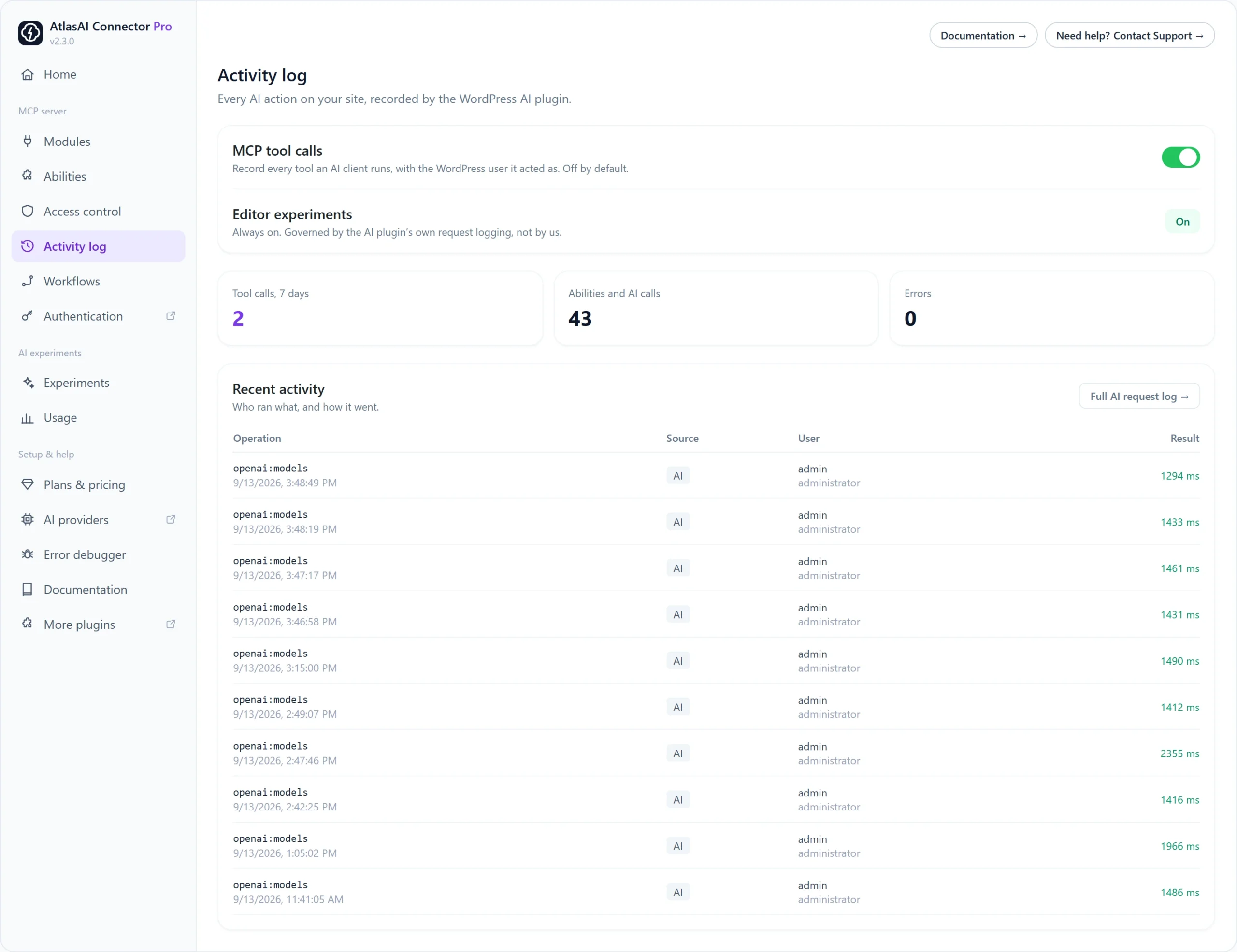
When an AI client changes your site, you want to know what it did. The Activity log shows every AI action: the tool that ran, the WordPress user and role it acted as, how long it took, and the result.
Before you start
Recording is provided by the official WordPress AI plugin. If it is not installed, the Activity log shows Logging needs the AI plugin with an install link. Install and activate it first.
How to record MCP tool calls
- Go to AtlasAI Connector → Activity log.
- Switch on MCP tool calls. It is off by default.
- Use your AI client as usual. New tool calls appear under Recent activity.
Editor experiments are always recorded by the AI plugin request log, so there is no switch for them.
Read the log
- Tool calls, 7 days: how many tools AI clients ran this week.
- Abilities and AI calls: all ability runs and AI requests.
- Errors: calls that failed.
- Recent activity: each operation with its source, user, role and duration. Click Full AI request log for the complete history.
When to use it
- Check what an AI client changed after a long session.
- Find out why a tool failed.
- Confirm that a role can only run the tools you allowed.