
How to Limit What Claude or ChatGPT Can Do on WordPress by User Role
An AI client acts as the WordPress user who connected it. Access control decides which tools each role can use, so an editor connection cannot change settings or users even if the AI tries.
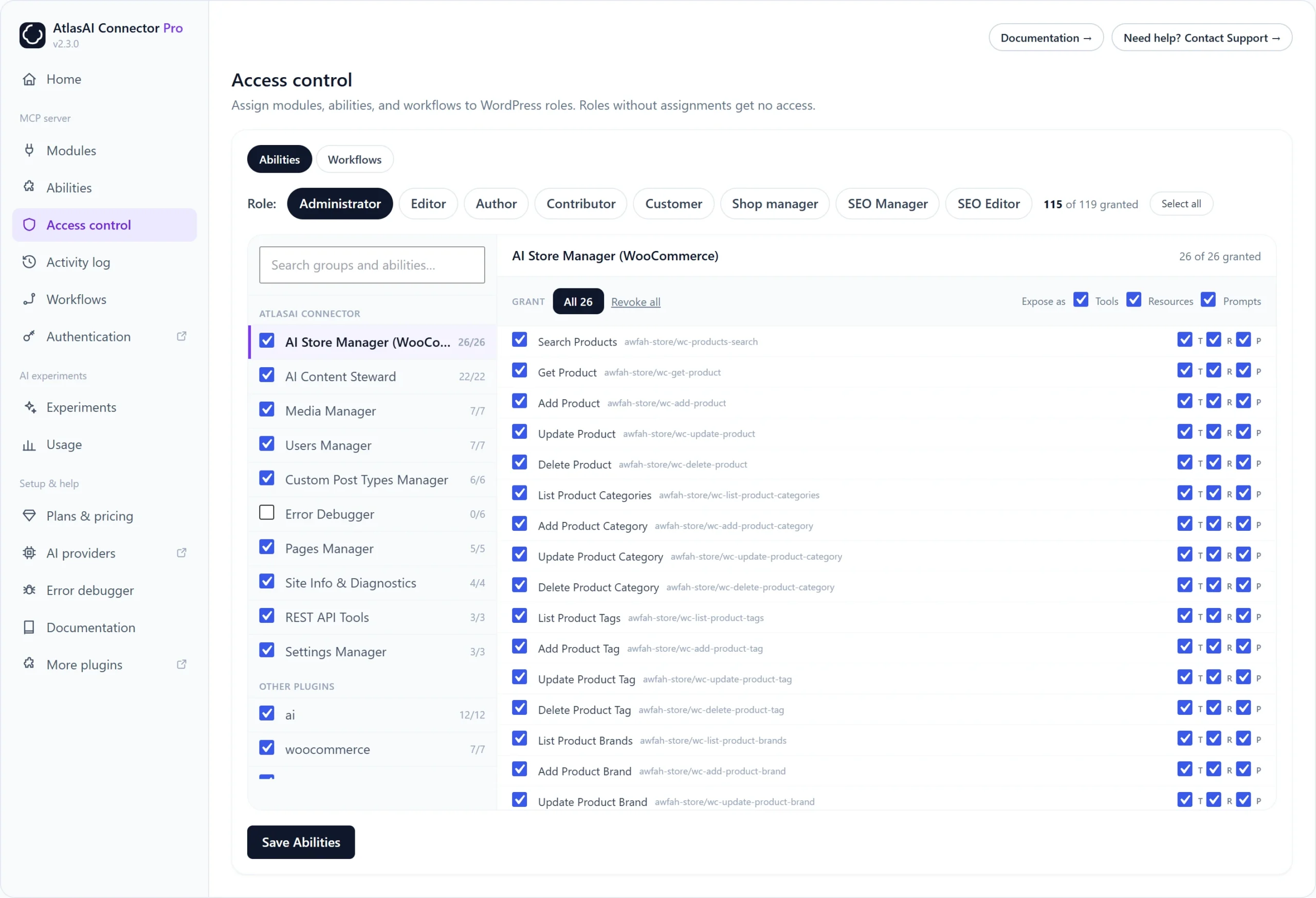
How to set access for a role
- Go to AtlasAI Connector → Access control.
- Keep the Abilities tab selected and click a role, for example Editor.
- Tick the groups this role may use, for example AI Content Steward and Media Manager.
- Click Save Abilities.
Roles with no assignments get no access. Every tool also runs its own WordPress permission check, so an AI can never do more than the user behind it.
Give a role access to workflows
Open the Workflows tab and choose which saved workflows each role can run.
Example: a safe setup
| Role | Suggested access |
|---|---|
| Administrator | Everything you use |
| Editor | AI Content Steward, Pages Manager, Media Manager |
| Shop manager | AI Store Manager (WooCommerce) |
| Author, Contributor | Only the content tools they need, or nothing |
Pro controls
Pro: Grant single abilities instead of whole groups. Choose how each ability is exposed: as a Tool, a Resource or a Prompt.
Pro: On the MCP Auth page, Per-role OAuth policy decides which roles may connect an AI client at all and which scopes (mcp:read, mcp:write, mcp:woocommerce) they can grant.