Picture this. A reader in Mexico City opens your blog post while stirring a pot of beans. Her hands are busy. Her phone is propped against the sugar jar. Will she read all 2,000 words? Probably not.
But would she listen? Very likely.
Spanish is spoken by more than 635 million people around the world. Many of them are learners, commuters, or simply people who’d rather hear a post than squint at it. Adding a “listen” button in Spanish lets you reach all of them.
The tricky part is getting it right. A bad setup can make your Spanish audio sound like a tourist reading a menu.
In this guide, you’ll learn five simple ways to add Spanish text-to-speech to WordPress. You’ll also see how to pick the right accent and fix common pronunciation slips.
Quick Answer: To add Spanish text-to-speech in WordPress, install a TTS plugin like AtlasVoice that supports Spanish voices. Set the voice language to Spanish. Enjoy Spanish Text-to-Speech inside any page or post.
What is Spanish Text-to-Speech?
Spanish text-to-speech (TTS) is a technology that turns written words into spoken Spanish audio. You write the words, and a computer/AI voice reads them out loud.
On a WordPress site, it usually shows up as a small audio player at the top of a post. A visitor taps “play,” and the article starts speaking in Spanish.
So how does it actually work?
The TTS engine reads your text, figures out how each word should sound, and then speaks it with a voice. Good engines also pay attention to punctuation. They pause at commas, raise the tone at the end of a question, and stress the right syllable in words like canción or árbol.
Why Add Spanish Text-to-Speech to Your WordPress Site?
You already put time into writing great content. So why not let more people enjoy it?
Not everyone wants to read a long article on a small screen. Some people can’t read it easily. Others are simply busy. A Spanish audio player gives all of them another way in, without you writing a single extra word.
Here’s what you get out of it:
- Reach Spanish speakers who prefer listening. Many people love podcasts and audiobooks. A “listen” button lets them enjoy your posts the same way, whether they’re driving, cooking, or walking the dog.
- Help readers who struggle with text. People with low vision, dyslexia, or eye strain can follow your content much more easily when they hear it. Older readers often appreciate it too.
- Support Spanish learners. Students learning Spanish can read and listen at the same time. Some plugins even highlight each word as it’s spoken, which makes your post a mini language lesson.
- Keep visitors on your page longer. Someone who might leave after a quick skim may stay for the full audio. That extra time can be a good sign that your content is useful.
- Serve bilingual audiences better. If your site has both English and Spanish versions, matching the audio to the page language makes the whole experience feel complete and well thought out.
- Stand out from competitors. Most websites still don’t offer audio, especially in Spanish. Adding it is a simple way to look more modern and more caring toward your readers.
Requirements Before Spanish Text-to-Speech to WordPress
Before you jump in, let’s make sure you have everything ready. The good news? The list is short, and most of it you probably already have.
Here’s what you’ll need:
- Admin access to your WordPress site: You’ll be installing a plugin and changing settings, so you need to log in as an Administrator.
- The AtlasVoice plugin: This is the tool we’ll use throughout this guide. On WordPress.org, it’s listed as Text To Speech TTS Accessibility. The free version of AtlasVoice works right after activation.
- A modern browser with Spanish voices: The free version of AtlasVoice uses the voices built into your visitor’s browser. Chrome, Edge, Safari, and Firefox all support Spanish, but the number of voices changes from one browser and device to another. Edge usually offers the widest choice.
- AtlasVoice Pro (optional, for AI voices): Want natural-sounding Spanish that sounds the same on every device? Pro adds AI voices and MP3 audio files. You can use AtlasVoice Pro and it’s own AI engine.
- An API key or JSON file (only if you use outside providers): For example, Google Cloud needs a service account JSON file that you upload inside AtlasVoice under Integration > Google Cloud TTS. Skip this if you’re using the free version or AtlasVoice AI.
5 Steps to Add Spanish Text-to-Speech in WordPress
Ready to make your posts speak Spanish? The whole setup takes about 10 minutes, and you don’t need to touch a single line of code.
We’ll use AtlasVoice Pro for this guide. Why Pro? Because it gives you natural AI voices in Spanish that sound the same on every device, instead of depending on whatever voice your visitor’s browser happens to have.
Let’s walk through it, step by step.
Step 1: Install the AtlasVoice Pro Plugin
First, get the plugin up and running on your site.
- Purchase and download AtlasVoice Pro from the official website.
- In your WordPress dashboard, go to Plugins > Add New > Upload Plugin.
- Choose the downloaded ZIP file and click Install Now.
- Click Activate once the installation finishes.
- Enter your license key when prompted to unlock the Pro features.
The Pro version is needed here because it includes the advanced Spanish AI voices and integrations used in this setup. If you get stuck, follow the AtlasVoice Pro installation guide for detailed help.
Step 2: Choose the AtlasVoice TTS Pro Player
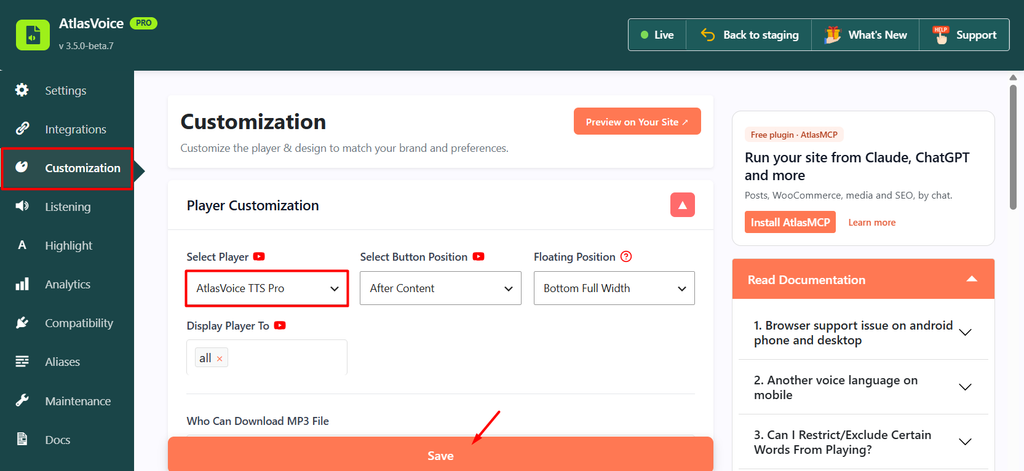
Next, tell AtlasVoice which player to use for your audio.
- Open the AtlasVoice menu and go to the Customization tab.
- Find the Select Player option.
- Choose AtlasVoice TTS Pro as your TTS player.
- Adjust the player placement, colors, button style, and other player settings to match your website’s design.
- Click Save Changes.
Tip: Keep the player simple and easy to spot. If visitors can’t find the play button in two seconds, they probably won’t use it.
Step 3: Select Your Spanish Voice Language
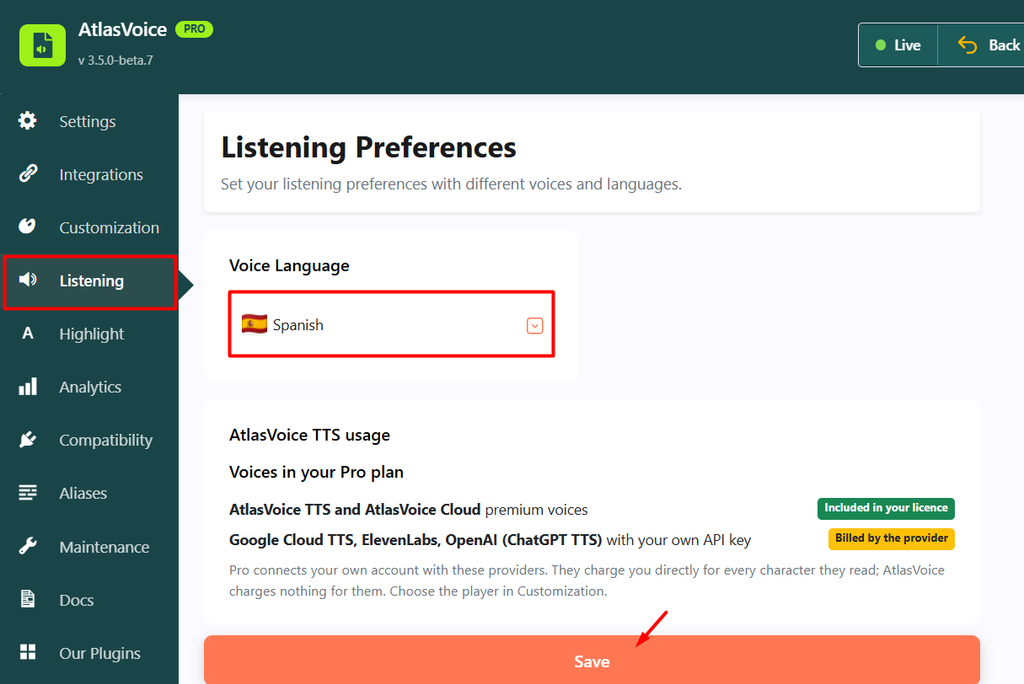
This is the most important step. The accent you pick here shapes how “local” your audio feels.
- Go to the Listening tab.
- Open the Voice Language dropdown.
- Choose the Spanish variant that matches your audience:
- Spanish (Spain) for readers in Spain and much of Europe
- Spanish (Mexico) for readers in Mexico and Central America
- Spanish (United States) for U.S. Hispanic audiences, and others
- Pick a voice from the available options. Try a few, as each one has its own tone and speed.
- Click Save Changes.
Not sure which one to choose? Check your Google Analytics to see which countries your Spanish visitors come from. Then go with the majority. Even you can check demo voices from AtlasVoice’s Demo Portal.
Step 4: Turn On the Player Automatically
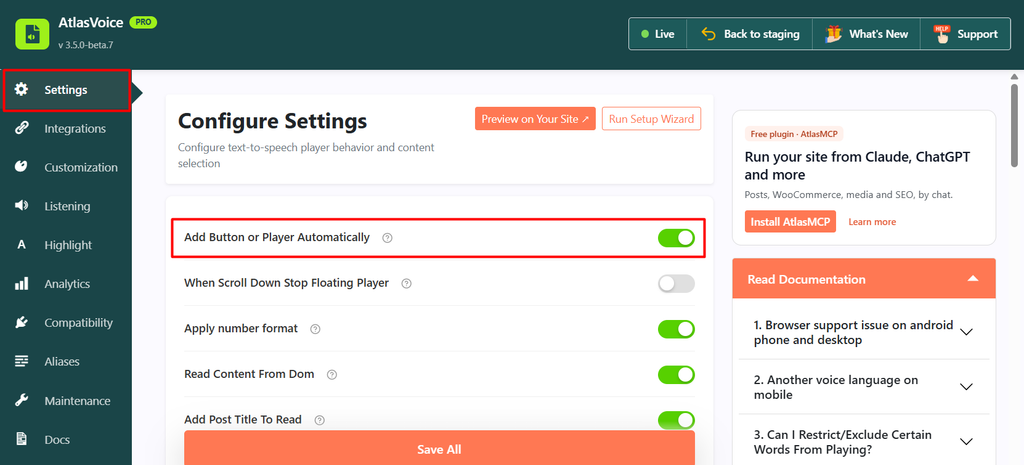
Now let’s make the player show up on your posts without adding it one by one.
- Go to the Settings tab.
- Find the Add Button or Player Automatically option.
- Make sure it’s enabled.
- Choose the content types where you want the player to appear, such as posts, pages, or WooCommerce products.
- Click Save Changes.
Only want audio on a few posts? You can turn off automatic placement and use the [ atlasvoice ] shortcode or the Gutenberg block instead.
Step 5: Test How Your Spanish Audio Sounds
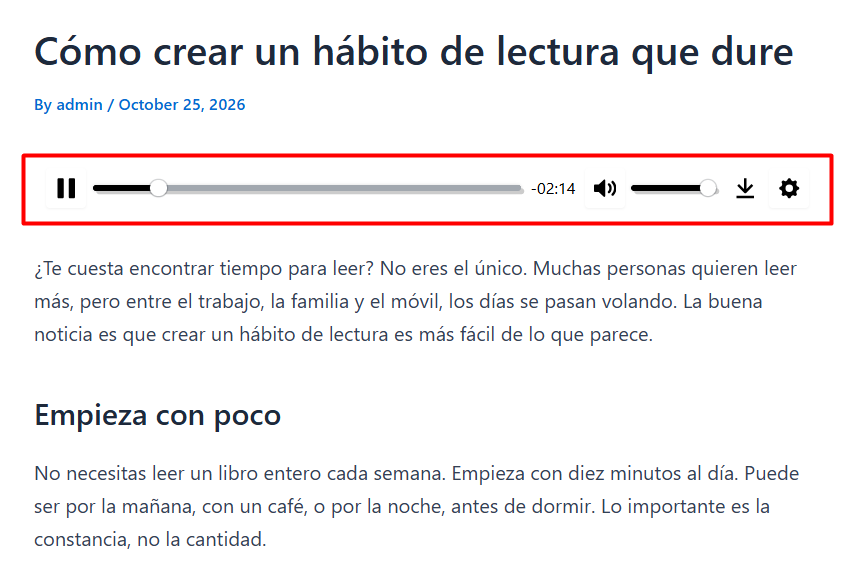
Don’t skip this one. A quick listen can save you from awkward mistakes.
- Open any Spanish post where the AtlasVoice player is enabled.
- Click the Play button.
- Listen closely for:
- Correct pronunciation of accented words like también or corazón
- The right accent for your audience
- Natural pauses at commas and periods
- Rising tone on questions (¿Cómo estás?)
- Test on both your phone and your computer.
- If something sounds off, go back to the Listening tab and try a different Spanish voice.
Even better, ask a native Spanish speaker to listen for one minute. They’ll catch things you might miss.
Once you’re happy with the result, ¡listo! Your WordPress site now speaks Spanish.
How to Add Spanish Text-to-Speech from 3rd Party Integrations?
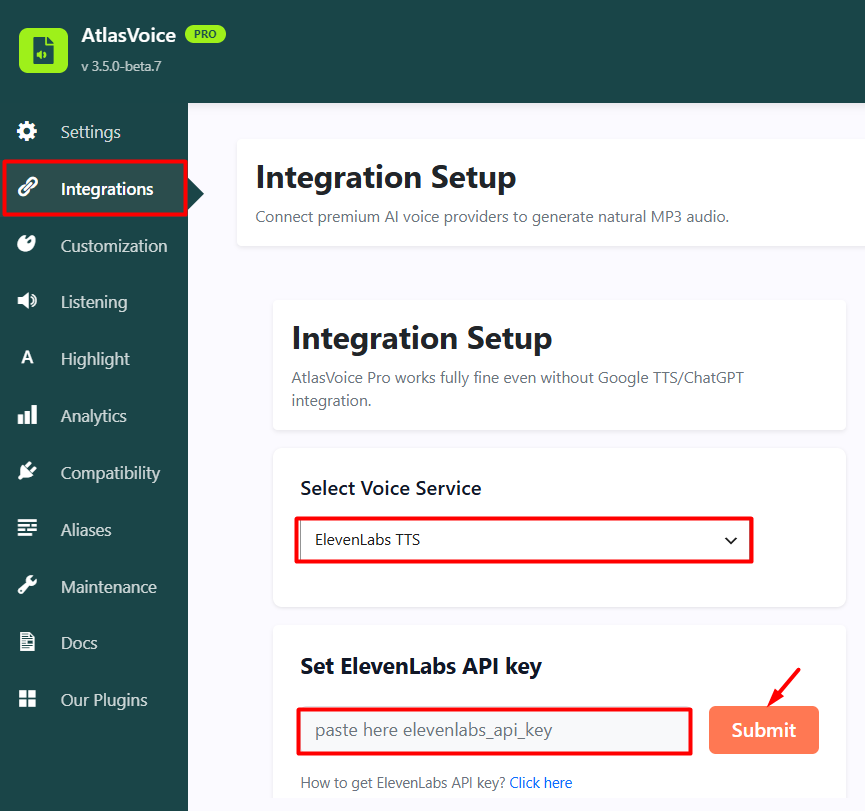
Want even more Spanish voices to choose from? AtlasVoice Pro lets you go beyond its built-in AI engine and connect popular voice services you may already know.
You can add Spanish voices from Google Cloud, ElevenLabs, and ChatGPT (OpenAI) right inside your WordPress dashboard. Each one has its own style. Google Cloud offers a wide range of Spain and Latin American accents. ElevenLabs is known for very lifelike, expressive voices. OpenAI’s voices sound smooth and conversational.
The best part? The setup is the same for all three. Just keep your API key ready and follow these steps:
- Go to Integrations, select your voice service, enter your API key, and click Save Changes.
- Go to the Customization tab, select the player that matches your integration, and click Save Changes.
- Go to the Listening tab, select the Spanish language, and click Save Changes.
That’s it. Open a Spanish post and press play to hear your new voice.
A quick heads-up: these services usually charge based on how much text you convert. Check each provider’s pricing and usage limits before generating audio for your whole site.
How to Make Spanish TTS Sound Natural?
Ever heard a computer voice read Spanish and thought, “Something’s off”? Most of the time, the problem isn’t the voice. It’s the text. TTS reads exactly what you write, so a few small habits make a big difference.
Set Your Site Language to Spanish
Go to Settings > General > Site Language and choose Español (not always mandatory to do). This helps browsers pick a Spanish voice instead of reading your text with an English accent.
Never Skip Accents and the Ñ
Accents tell the voice which syllable to stress. Esta and está sound different. So do papa and papá. Run a Spanish spell check before you publish.
Replace Abbreviations
Voices often misread short forms like EE. UU., Sr., or pág. Write them out in full, or use AtlasVoice’s text aliases feature to make the voice say “Estados Unidos” without changing what readers see.
Write Numbers and Dates Clearly
1.500 means one thousand five hundred in Spain, but the voice might read it differently. For prices and dates, write them clearly, like 1500 euros or 5 de octubre de 2026.
Check English Words and Brand Names
Words like WordPress or marketing can sound strange in a Spanish voice. If one keeps coming out wrong, add a text alias with a phonetic spelling.
Keep Sentences Short
Long sentences leave the voice no room to breathe. Aim for under 20 to 25 words per sentence.
Use Full Punctuation
Write ¿Cómo funciona? instead of Cómo funciona. Question marks and commas tell the voice when to pause and when to change tone.
Common Problems (and Quick Fixes)
So you’ve set everything up, pressed play, and… something isn’t right. Maybe the voice sounds like it’s reading Spanish with an English accent. Maybe the player is missing completely, or it shows up twice on the same page.
Don’t panic. These hiccups happen to almost everyone, and they’re rarely serious. In most cases, the cause is a single setting, a caching issue, or a small spelling detail in your text.
Below are the most common problems people run into with Spanish text-to-speech in WordPress, along with quick fixes you can try in just a few minutes.
Spanish Text Is Read With an English Accent
This usually means the voice language is wrong. Go to the Listening tab in AtlasVoice and make sure a Spanish voice is selected. Also check that your Site Language is set to Español.
No Spanish Voice Shows Up
With browser voices, the options depend on the visitor’s device. Try another browser, like Edge, which usually offers more voices. For a voice that works the same everywhere, switch to AtlasVoice Pro’s AI voices.
The Player Doesn’t Appear
Check that Add Button or Player Automatically is turned on in the Settings tab. Then make sure the right content type is selected. Still missing? Clear your cache and view the post in a logged-out browser window.
The Player Shows Up Twice
You probably have both automatic placement and a shortcode or block on the same post. Remove one of them, then clear your cache.
The Voice Reads Menus, Ads, or Buttons
The player may be picking up extra page elements. Check AtlasVoice’s settings to exclude unwanted sections, so only your main article gets read.
Some Words Sound Wrong
Look for missing accents, abbreviations, or English words. Fix the spelling, or add a text alias so the voice says the word correctly.
The Audio Doesn’t Update After Editing
If you’re using AI-generated MP3s, the old audio may still be saved. Regenerate the audio for that post after making changes.
FAQs and Answers
Still have a few questions on your mind? That’s completely normal. Adding audio to a website is new for many site owners, and Spanish brings a few extra details to think about.
Here are clear answers to the questions people ask most often.
Is there a free Spanish text-to-speech plugin for WordPress?
Yes. The free version of AtlasVoice supports Spanish using the voices built into your visitor’s browser. It works right after activation, with no account, no API key, and no character limit. The only catch is that voice quality can vary from one device to another.
Can WordPress read my posts in Mexican Spanish?
Yes. AtlasVoice Pro lets you choose a Spanish voice that matches your audience, such as Mexican, U.S., or Spain Spanish. Just pick the right option from the Voice Language dropdown in the Listening tab, then test it on a post.
What’s the difference between Spain Spanish and Latin American Spanish in TTS?
The main differences are accent and pronunciation. For example, Spain Spanish often pronounces “c” and “z” with a “th” sound, while Latin American Spanish uses an “s” sound. Choose the version your readers are most familiar with.
Do I need an API key for Spanish text-to-speech?
Not necessarily. The free version of AtlasVoice needs no API key at all. AtlasVoice Pro also includes its own AI engine that works without one. You only need an API key if you choose to connect outside services like Google Cloud, OpenAI, or ElevenLabs.
Will text-to-speech slow down my WordPress site?
Usually not by much. Browser-based voices are generated on the visitor’s device, so your server does very little work. Still, it’s smart to test your page speed after setup, especially if you use caching or optimization plugins.
Can visitors download the Spanish audio as an MP3?
Yes, with AtlasVoice Pro. It can generate MP3 files for your posts and let visitors download them. This is handy for people who want to listen offline, like during a commute or a flight.
Does Spanish text-to-speech help SEO?
Not directly as a ranking factor. But it can improve the reader experience, which matters to Google. AtlasVoice Pro also adds audio schema markup, helping search engines understand that your content is available as audio.
Can I use Spanish and English voices on the same site?
Yes. If you run a bilingual site, AtlasVoice works with WPML, Polylang, TranslatePress, and GTranslate. This lets the voice match the language of each page, so Spanish posts get a Spanish voice and English posts get an English one.
Why does my Spanish audio sound robotic?
Browser voices can sound a bit flat, especially on older devices. Switching to AI voices in AtlasVoice Pro makes a big difference. Writing short sentences, using correct accents, and adding full punctuation also helps the voice sound more natural.
Conclusion
Adding Spanish text-to-speech to WordPress is easier than most people think. Install AtlasVoice, pick the right Spanish voice for your audience, turn on the player, and give it a quick listen. That’s really all it takes.
The small details are what make it shine. Use correct accents, keep sentences short, and choose an accent your readers actually recognize. These little touches turn a robotic voice into something people enjoy listening to.
Just starting out? Try the free version first and see how your readers respond. When you’re ready for more natural voices, MP3 downloads, and multilingual support, AtlasVoice Pro is there to take things further.
Your Spanish-speaking readers are waiting to hear what you have to say. So go ahead, ¡dale play!
🔊 Stay Updated with AtlasVoice
Get the latest tips on text-to-speech, accessibility, and WordPress delivered to your inbox.
No spam. Unsubscribe anytime.