Here’s an uncomfortable question. If someone who can’t use a mouse landed on your site right now, could they reach your contact form?
For most WordPress sites, the honest answer is “probably not.” WebAIM tests the home pages of the top one million websites every year. In its 2026 report, the WordPress sites in that sample averaged 52.8 detectable accessibility errors each. And that’s only what an automated tool can catch.
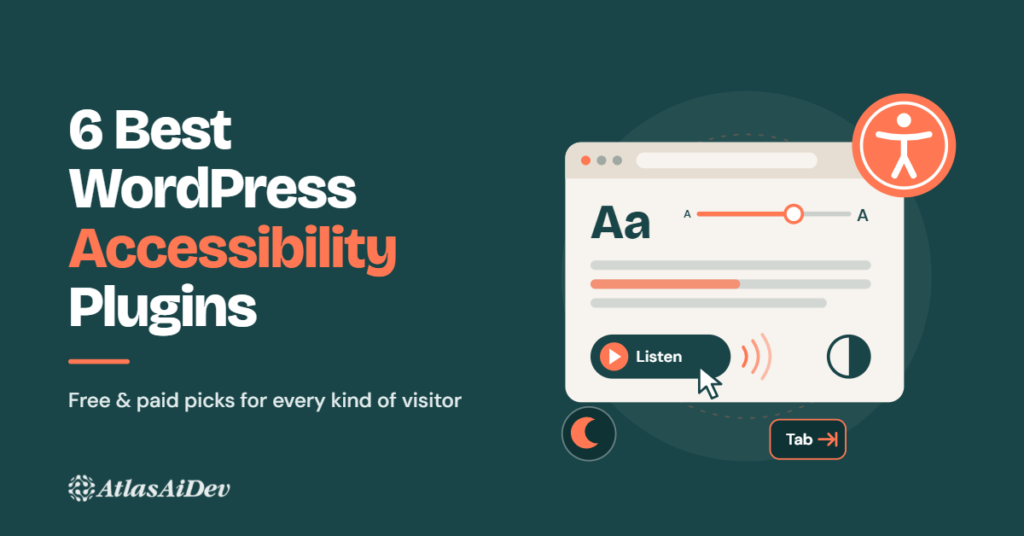
The good news? You don’t need to rebuild your site to start fixing this. A few well-chosen plugins can remove real barriers in an afternoon.
The catch is that “accessibility plugin” means very different things. Some fix your code. Some add a toolbar for visitors. Some read your posts out loud. And a few make promises they can’t keep.
So in this guide, we’ll walk through six plugins, what each one actually does, what none of them can do, and how to pick the right mix for your site.
What Does Accessibility Plugin Mean?
An accessibility plugin is an add-on that makes your WordPress site easier to use for people with disabilities. That includes people who are blind or have low vision, people who can’t use a mouse, and people with dyslexia, ADHD or light sensitivity.
Think of it like adding a ramp and handrails to a building. The building already exists. The plugin adds things that help more people get in and move around comfortably.
Not every accessibility plugin works the same way, though. Most fall into one of four groups:
- Code fixers change your site’s code behind the scenes. They add things like skip links, form labels and visible focus outlines that your theme forgot. Visitors don’t see a button; the site just works better.
- Scanners check your pages and tell you what’s wrong, such as missing alt text or low-contrast text. They don’t fix everything themselves, but they show you where to look.
- Visitor toolbars add a small floating menu. Visitors can use it to make text bigger, raise contrast, pause animations or change spacing to suit their needs.
- Reading aids help people take in your content in a different way. A text-to-speech player reads posts aloud, and a dark mode switch makes long reading easier on the eyes.
Wait, Can a Plugin Actually Make Your Site Accessible?
Short answer: it can help a lot, but it can’t finish the job.
Think about what accessibility really involves. Your images need descriptions that make sense. Your menus need to work with a keyboard. Your forms need clear labels. A plugin can patch some of that automatically.
It can’t know what your photo shows or whether your checkout makes sense to a screen reader user.
Accessibility sounds huge. Where do you even begin? The good news: most problems come from the same few mistakes. WebAIM found errors on 95.9% of the top one million home pages in 2026, and just six error types made up about 96% of them.
Here are the problems visitors run into most, and which plugin from this list helps with each:
- No way to listen to content: Long text is hard for people with dyslexia, tired eyes or a different first language. AtlasVoice adds a “Listen” button that reads posts aloud, with highlighting that follows along.
- Bright screens that cause eye strain: A glaring white page can be painful for people with migraines or light sensitivity. WP Dark Mode lets visitors switch to a dark theme, or turns it on automatically.
- Text that’s too small or faint: OneTap, Web Accessibility and UserWay let visitors enlarge text and raise contrast. To fix your actual colors, use the contrast checker in WP Accessibility.
- Missing alt text: WP Accessibility warns you about missing alt text while you edit. Web Accessibility finds it in scans and can suggest descriptions on paid plans.
- Missing form labels: WP Accessibility adds labels to WordPress search and comment forms. For custom forms, Web Accessibility‘s scanner flags what’s missing.
- Empty links and buttons: Icon-only links and buttons are announced as just “link” or “button.” Web Accessibility detects them, and WP Accessibility adds post titles to vague “read more” links.
- Missing page language: Screen readers may read your text with the wrong accent. WP Accessibility adds the language attribute automatically.
- Hard to use with a keyboard: WP Accessibility adds skip links and visible focus outlines. OneTap Pro adds a keyboard navigation mode to its toolbar.
Benefits of Using Accessibility Plugins in WordPress
Why bother with an accessibility plugin at all? Your site works fine for you, right? But “works for me” isn’t the same as “works for everyone.” Around one in six people worldwide lives with a significant disability, and many more deal with aging eyes, injuries or tiring screens.
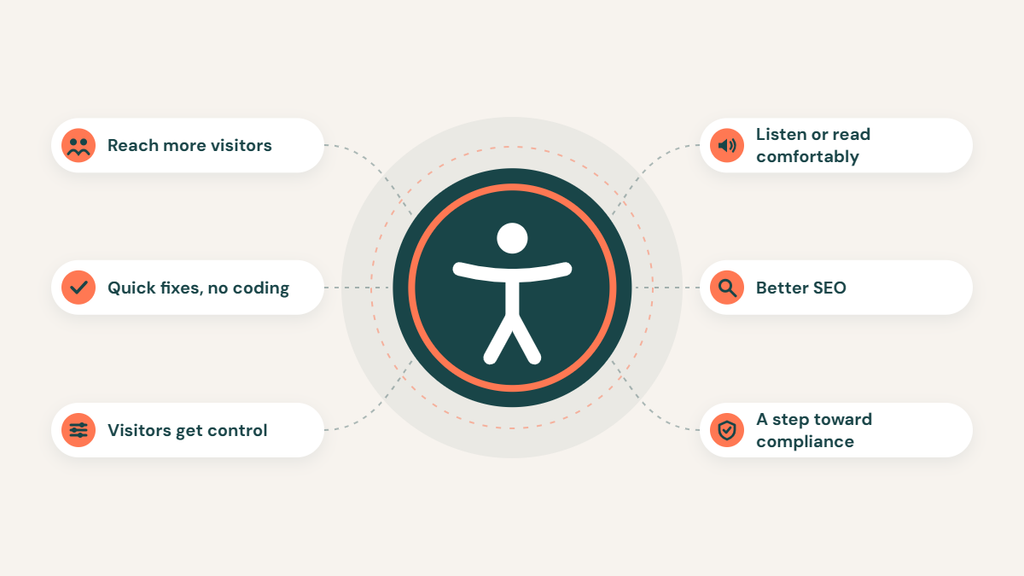
The right plugin helps you close that gap without rebuilding your site. Here’s what you gain:
- More people can use your site. Visitors who rely on keyboards, screen readers or larger text can actually find what they came for.
- Quick wins without coding. Many common fixes, like skip links and form labels, switch on in a few clicks.
- Visitors get control. People can adjust text size, contrast, spacing or motion to suit their own needs.
- Content in more formats. Read-aloud and dark mode options let people listen or read comfortably, however they prefer.
- Problems are easier to spot. Some plugins flag issues like missing alt text before you publish.
- A better experience for everyone. Clear labels, readable text and easy navigation help every visitor, not just those with a disability.
- Support for SEO. Alt text, clear headings and descriptive links help search engines understand your pages too.
- A step toward legal requirements. Plugins don’t make you compliant on their own, but they help you move toward standards like WCAG and laws like the EAA and ADA.
- More trust and more customers. When people can use your site easily, they stay longer, buy more and come back.
How We Picked These Plugins
We looked at each plugin against the same six questions:
- Is it maintained? Recent updates, tested with the current WordPress version, and support threads that get answered.
- Does it help real people? Not just a checkbox for a lawyer, but a difference for someone using a keyboard, a screen reader or a zoomed-in screen.
- Is it honest about its limits? Plugins that promise “full compliance in one click” lost points.
- Can a non-developer set it up? You shouldn’t need to touch code to get value from it.
- What does it send elsewhere? We checked for required accounts and outside services, which matter for privacy.
- What do users say? WordPress.org ratings, review counts and recent complaints.
Best WordPress Accessibility Plugins
Ready for the details? Each plugin below solves a different problem, from reading content aloud to fixing hidden code issues. For every pick, you’ll find what it does, its key features, what to watch out for and who it suits best. Read through, then match them to the visitor needs you spotted earlier.
1. AtlasVoice: Best for Read-Aloud and Listen-to-Article
Ever wished you could just listen to an article instead of reading it? Many of your visitors do, including people with dyslexia, tired eyes or a different first language.
AtlasVoice adds a “Listen” button to your posts, pages and products. The free version uses the voices already built into the visitor’s browser, so there’s no account, no API key and no character limit.
Key features:
- Works right after activation on the post types you choose
- Read-along highlighting that follows the voice
- Visitors can select any passage and hear just that part
- Floating player plus a pronunciation tool for names and numbers
- Works with WooCommerce, custom post types and the block editor
What Pro adds: AtlasVoice Pro produces more natural AI voices (AtlasVoice’s own engine is included), optional Google Cloud, OpenAI or ElevenLabs voices, MP3 downloads, bulk audio generation and 81+ languages.
Watch out for: Free voices depend on the visitor’s browser, and Edge offers the most. It’s a reading aid, not a code fix, so it doesn’t replace a screen reader for blind users.
Privacy note: Usage tracking and listener location lookups are off by default.
Best for: Blogs, news sites, online courses and stores with long product descriptions.
2. WP Accessibility: Best Free Fixer for Common Theme Problems
If you install only one plugin from this list, make it this one. Built by long-time WordPress accessibility contributor Joe Dolson, it quietly fixes problems many themes ship with: missing skip links, invisible focus outlines, missing language attributes, unlabeled search fields and blocked pinch-to-zoom.
Key features:
- Adds skip links, focus outlines and language attributes automatically
- Labels default search and comment forms
- Warns about missing alt text while you edit
- Color contrast checker and an optional text size and contrast toolbar
Watch out for: It doesn’t scan your site, and some fixes can clash with page builders. Check your pages after turning them on.
Best for: Every WordPress site, as a free starting point.
3. Web Accessibility by Elementor: Best All-in-One
This is the old One Click Accessibility, renamed by Elementor first to Ally and now to Web Accessibility. It combines a page scanner (180+ WCAG 2.1 AA checks with guided fixes), a visitor toolbar and an accessibility statement generator.
Key features:
- Built-in page scanner with step-by-step fixes
- Toolbar with contrast modes, readable font, reading guide and pause animations
- Accessibility statement generator
- AI alt text and fix suggestions on paid plans
Watch out for: The scanner needs an Elementor account. The 2.9 rating reflects complaints about upsells and Elementor menus showing up on non-Elementor sites. For GDPR, list Elementor as a sub-processor.
Best for: Elementor sites that want scanning and a toolbar in one plugin.
4. Accessibility Widget by OneTap: Best Free Visitor Toolbar
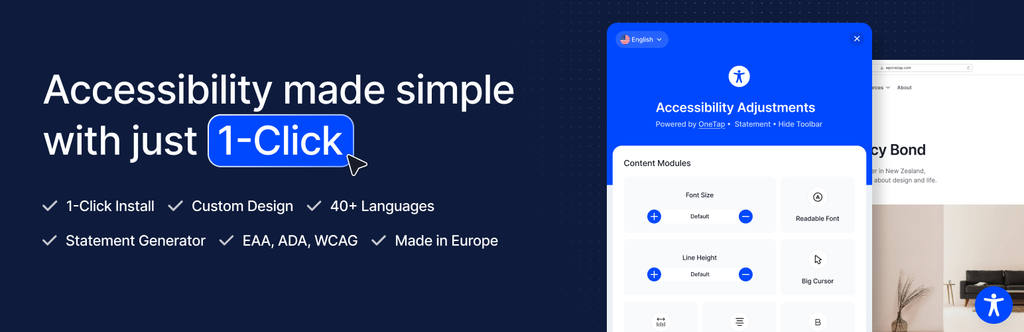
The easiest way to add a visitor toolbar with Accessibility Widget by OneTap. Install it and it’s live, with no account or API key. The free version covers text size, spacing, readable font, contrast modes, a reading mask, hide images and stop animations.
Key features:
- No sign-up required
- 44 toolbar languages with automatic detection
- Accessibility statement generator
- Says it collects no user data
Watch out for: The dyslexic font, dark contrast, keyboard navigation and ready-made profiles are Pro only. Like any toolbar, it doesn’t repair your code.
Pricing: Pro is $69 for one site or $118 for three (October sale, normally $129 and $169). Agency plans start at $199 one-time.
Best for: Small business sites, blogs and EU sites.
5. WP Dark Mode: Best for Eye Comfort and Light Sensitivity
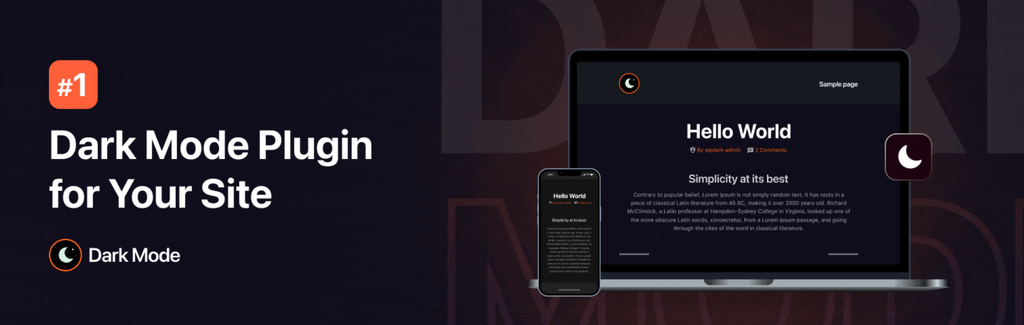
WCAG doesn’t require dark mode, but for people with migraines or light sensitivity, a bright white page can be painful. WP Dark Mode switches your site to a dark theme when a visitor’s device uses dark mode. Visitors can also use a floating switch or press Ctrl + Alt + D.
Key features:
- Follows the visitor’s device setting and remembers their choice
- Dims images in dark mode to reduce glare
- Dark mode for your WordPress dashboard too
- Keyboard and screen reader fixes for the switch (February 2026)
Watch out for: Make sure your dark colors still pass contrast checks. Scheduling, custom colors and page exclusions need the Ultimate plan.
Best for: Blogs and reading-heavy sites.
6. Accessibility by UserWay: Best Managed Service for Teams
UserWay is a commercial widget. The plugin connects your site to a UserWay account, where you manage everything. You get the usual visitor controls, plus paid AI remediation and monitoring.
Key features:
- Vendor-managed widget with support
- Large install base and a well-known brand
- Paid AI remediation and monitoring tools
Watch out for: You need an account just to test it. The plugin was last updated in December 2025, and reviewers mention an admin banner that won’t go away. Its plugin page still promises lawsuit protection, which no widget can guarantee.
Pricing: From $490/year (Pro) up to $2,490/year (Ultimate), based on September 2026 price tracking.
Best for: Larger organizations that want vendor support alongside real fixes.
FAQs and Answers
Still have a few questions? You’re not alone. Here are quick answers to the ones site owners ask most.
Does a WordPress accessibility plugin make my site ADA compliant?
No, not on its own. A plugin can fix common issues and give visitors helpful controls, but compliance also depends on your content, design and testing. Think of plugins as a strong first step, not the finish line.
What is the best free WordPress accessibility plugin?
Our top free pick is AtlasVoice. With no account or API key, it adds a “Listen” button that reads your content aloud, with read-along highlighting. Pair it with the free WP Accessibility plugin for behind-the-scenes code fixes, and you’ll cover both reading and technical barriers.
Will an accessibility plugin slow down or track your site?
Light plugins load small scripts from your own site and barely affect speed. Paid widgets often load from the vendor’s servers and may share data with them. Check each plugin’s privacy notes and test with PageSpeed Insights.
Will an accessibility plugin hurt my SEO or page speed?
Usually not. Alt text, clear headings and descriptive links can actually help search engines understand your pages. Just avoid running several toolbars at once, and test your speed before and after installing.
Do these plugins work with Elementor, Divi, or Gutenberg?
Yes. All six work on standard WordPress sites, including those built with Elementor, Divi or the block editor. Page builders can sometimes clash with fixes, so check a few key pages after installing.
Conclusion
An accessible website isn’t just about rules or avoiding complaints. It’s about making sure everyone who visits can read, listen, click and buy without hitting a wall.
The good news is that you don’t have to do it all at once. Start small. Pick one plugin that fixes common code issues and one that gives visitors more ways to enjoy your content, like a read-aloud button or display controls. That alone removes many everyday barriers.
Then keep going. Write clear alt text, check your colors, test with a keyboard, and review your site now and then. Plugins make the work faster, but your care is what makes it last.
So, which change will you make first?
🔊 Stay Updated with AtlasVoice
Get the latest tips on text-to-speech, accessibility, and WordPress delivered to your inbox.
No spam. Unsubscribe anytime.