How to configure Claude MCP server in AtlasAgent Plugin?
First download the Claude Desktop version from any browser.
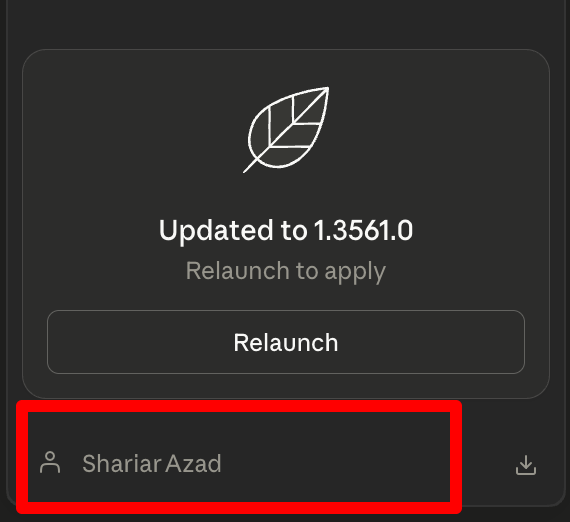
Open the claude desktop and log into your account. Now on the left sidebar at very bottom you will see the user profile and click it.
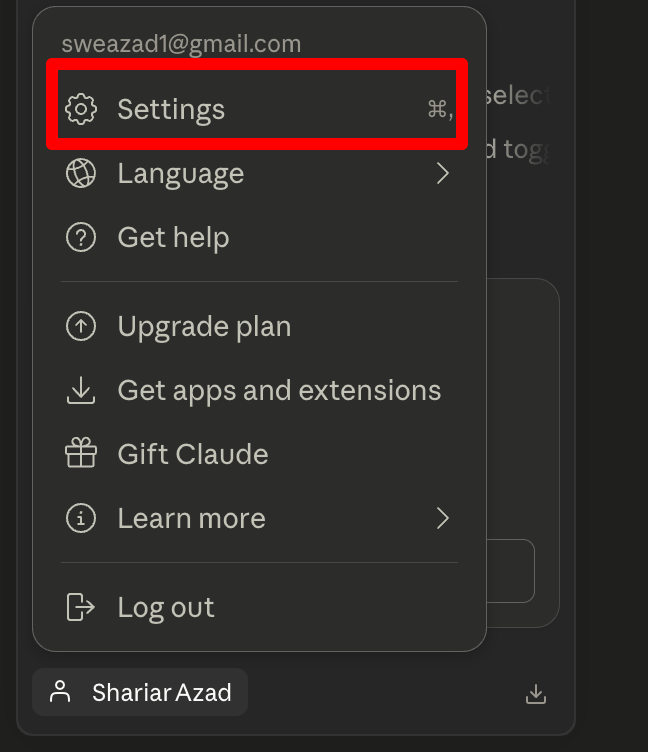
After clicking there will be an option called settings. Click the settings option.
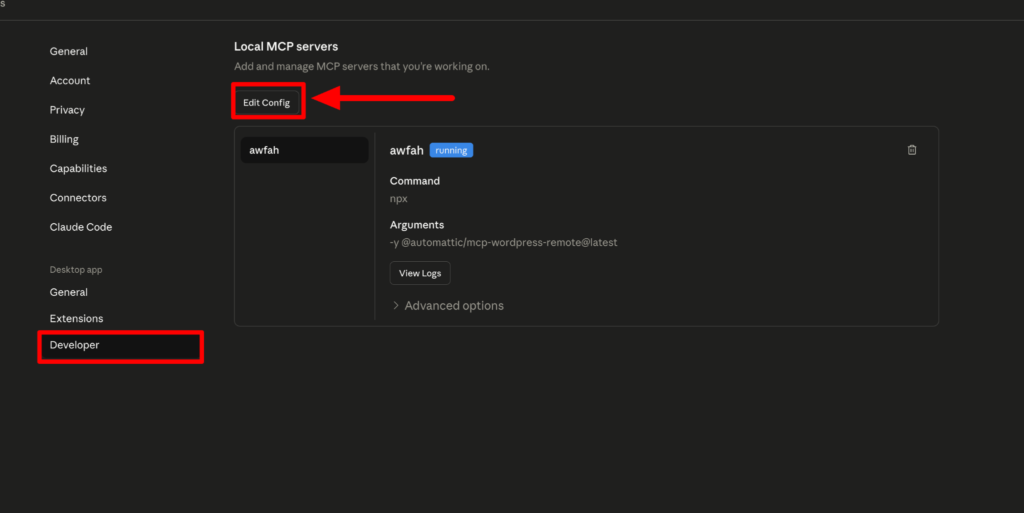
Then go to the developer option. Here you will see the Edit Config button and press the button.
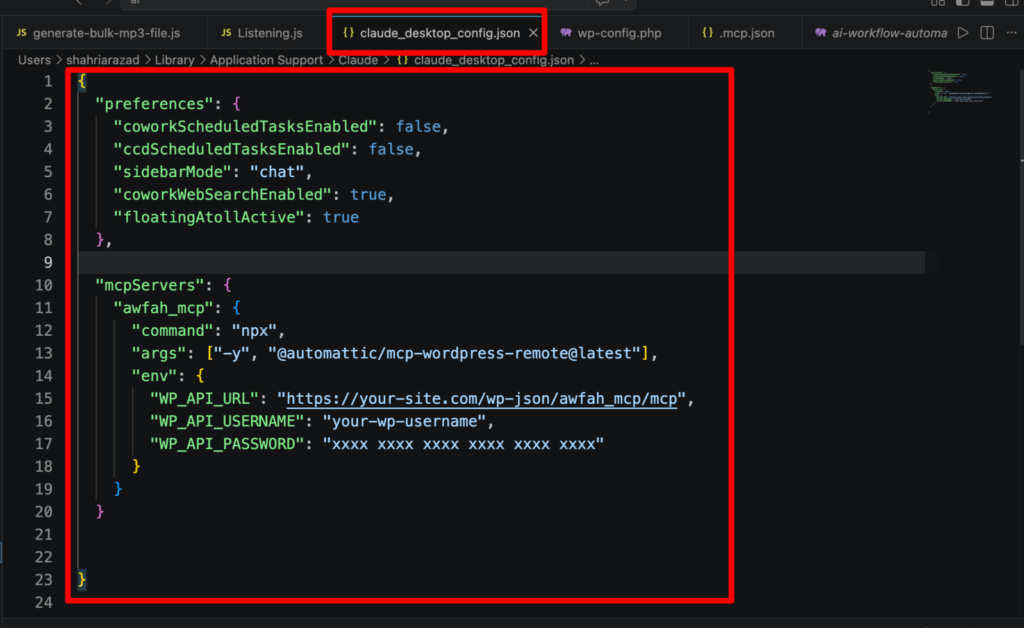
Now you have to open the Claude desktop config file to your IDE. Here you can see on our vscode we have pasted the mcp.json file code into a claude desktop config file. Please make sure you give all the API url, username, password correctly.
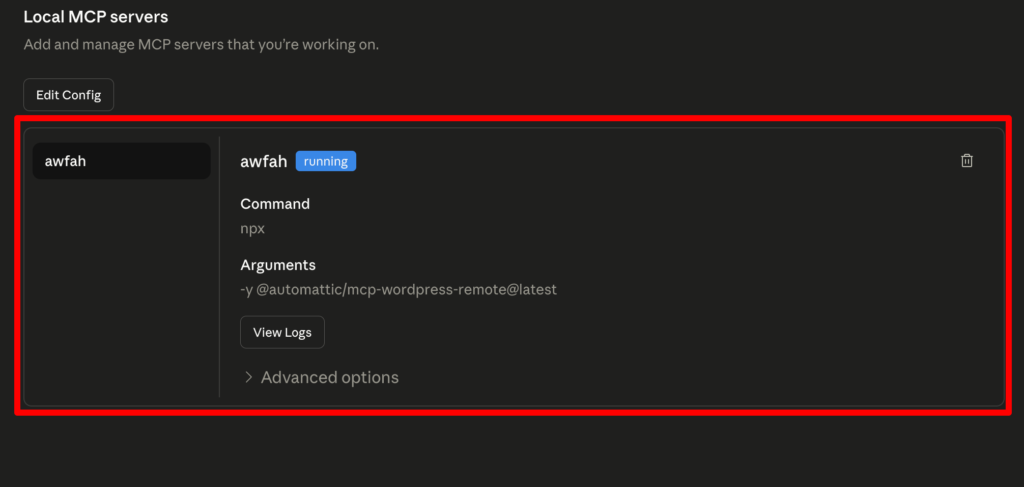
Now on the developer option you can see the MCP server for our wordpress site is working properly and its showing the status running.
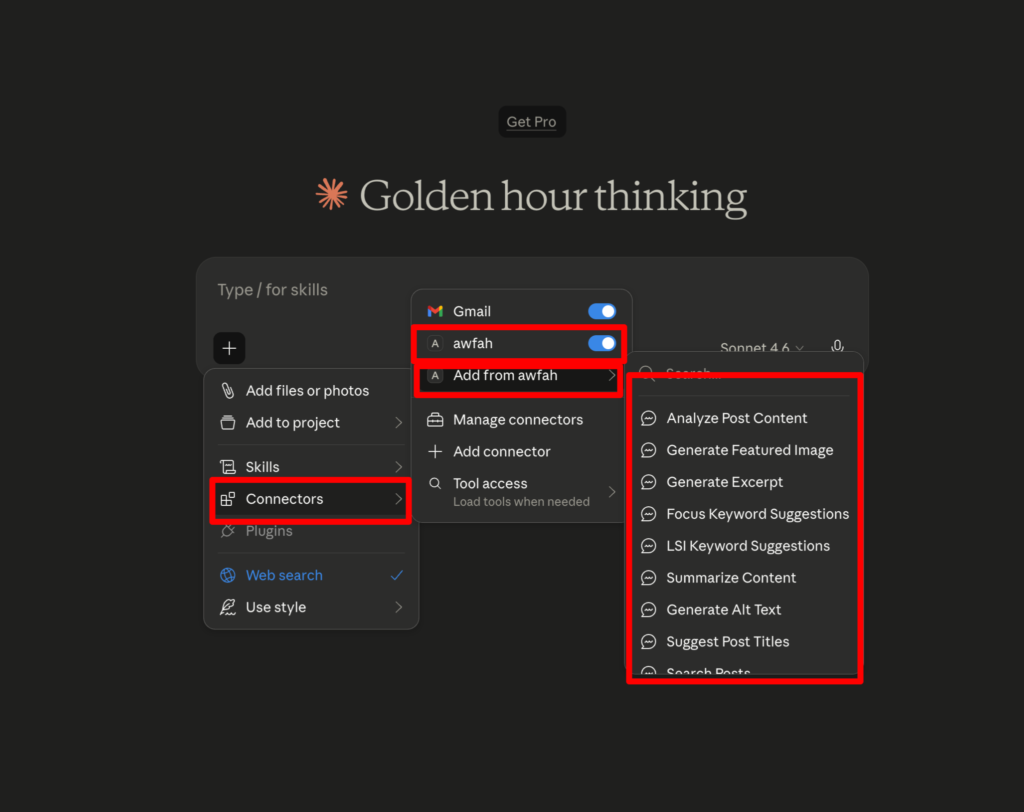
Now on the main chat screen, press the plus icon and click the connectors option. You will see the MCP server of your wordpress side is turned on and now you can add the module and access controls abilities directly from Claude.